About the Info panel
The type of data tracked includes:
- color values (based on a chosen model)
- total ink level
- horizontal and vertical position
- relative height, width, distance and angle
- document color format and ICC profile
- memory information
The panel allows you to sample from under the cursor or by dragging one or more targets to the page which lets you measure color at chosen positions. The latter is useful when comparing colors before and after applying image adjustments or filters.
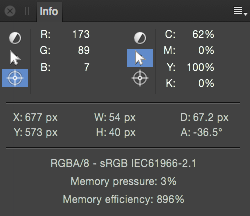
The following panel options are available for each sampler:
- Color Model—Sets the color model, or total ink level, to be tracked. Select from the pop-up menu.
- Cursor—Samples data under the current cursor position.
- Target—Samples data under a placed target on the image.
 To set a target position:
 To add a new sampler: