CLIP ! Help
Introduction
Clip! is a simple video editing program. It will stitch together clips from AVI files into one new file. I wrote it because I found that the software provided with my video capture card was so slow at producing video. I needed something to do the basic assembly of clips into a final production quickly, leaving the more powerful video editor to do the special effects and titles which are only needed in a few parts of the finished movie.
Getting Started
This is a simple tutorial to get you going. You will need at least one .AVI file to play with.
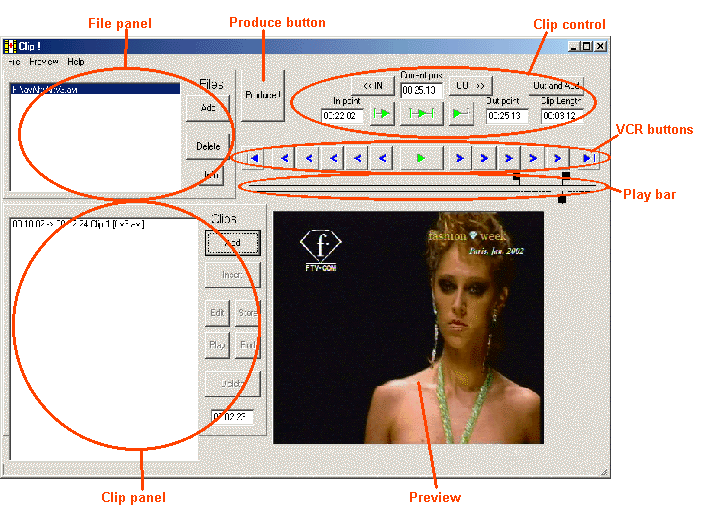
Loading and Playing Files
- Start the clip! program. Pretty obvious first step eh? Familiarise yourself with the main areas of the window as shown above.
- The first thing to do is to add your AVI file to the project. Locate the File panel at the top left, and click the Add button. An Open dialogue box will appear: browse to your AVI file and click on OK.
- If all is OK, the name of your AVI file will be listed in Files, and the first video frame of the file will be displayed in the preview window.
- You can now start playing your file by clicking on the Play VCR button above the preview window. It has a green triangle on it.
- As you start playing, the green triangle changes to a red square. This means that you can stop playing by clicking it again.
- As the file is being played, you will notice that the current frame pointer below the play bar will move. It is a black square with a line rising from the centre. This shows the position of the current frame in relation to the whole of the AVI file, the start of the file being on the left and the end of the file on the right.
- You can drag the current play pointer with the mouse by holding down the left mouse button and dragging. As you move it, that part of the video will be shown in the preview window. Try it!
- You can get finer control over the current position by using the arrow buttons on either side of the play/stop button. There are five on each side, moving the current frame in one direction or the other. The nearest one to the play button goes to the previous/next frame; the next one goes back or forward 10 frames; then back/forward 100 frames; 1000 frames and 10000 frames. Outside these are two more buttons - one goes back to the start of the file, and one goes to the end.
- When you are comfortable with the playing controls, it is time to start generating some clips.
Creating Clips
- With your file loaded from the previous section, set the current frame to the start of the bit of video you wish to extract.
- Click on the <<IN button in the play control area. This sets the In point of the clip. You will notice that the In-point pointer above the play bar will move to the current frame. This looks like a little flag pointing to the left.
- Now set the current frame to the end of the video you wish to extract, by playing, dragging the current frame pointer or using the step buttons. Click on the OUT>> button to set the Out point. The Out-point Pointer (which looks like a little flag pointing right) will move to the current frame.
- Note that the In-point and Out-point Pointers aredraggable too, just like the Current Frame Pointer. In fact they drag the current frame pointer with them when they move. However you cannot drag the out-pointer to the left of the in-pointer or vice versa.
- Now you have defined a clip. You can play the clip from start to finish using the big button directly below the current pos. The button to the left of this plays from the In point to the end of the file. The button to the right plays the last few seconds of the clip, up to the Out-point.
- Add this clip to the project by clicking on the Add button in the Clips panel. The clip will appear in the list with its In-point, Out-point, a name (Clip 1), and the file name in square brackets.
- At the bottom right of the Clips panel, you will see the total length of the clips in the project (just the one so far).
- Repeat the above steps and create another clip, and Add it with the Add button.
Saving your project
From time to time, it is a good idea to save your work. You can do this easily by using the File menu. Use the Save Project as... item, browse to a suitable directory and name your project. A file extension of .cli will automatically be added. It is a good idea to use the name of your finished movie, as this is the default file name for the finished product (except with a .avi extension of course).
Producing the movie
When you have added as many clips as you like, then produce the movie as follows:
- Save your project using File menu Save project item. This step is not essential, but if there were to be a computer crash during production of the movie, you'd be sorry!
- Click the Produce button. A dialogue box will open asking you for the name of the video file to produce. If you have saved the project, then the name of the project will be offered as a default file name.
- Enter your desired name and click Ok.
- A panel will appear, showing you the clip that is being processed and the time within the movie. On a reasonably fast system, the time taken to process each clip will be substantially less than the length of the clip.
- You may cancel the prodution at any point if you like by clicking the cancel button.
- When production is complete, a dialogue box will appear. Click OK and its all done!
More advanced topics
The Out and Add button
When compiling a list of clips, you will find that you commonly set the In point, then the Out Point, then click the Add button to add it to the list of clips.
To streamline the process, the Out and Add button at the top right performs the functions of setting the out point and adding the clip in one go.
Inserting Clips
Normally, you create clips in the order that you want them to appear in the final movie. The Add button always adds the clip to the end of the list of clips.
So how do you insert a clip in the middle of a list of clips? Easy. After you have set the In and Out points, just click on a clip in the list of clips. The clip will be highlighted and then click the Insert button in the Clip panel. Your new clip will be created and inserted before the one highlighted in the list.
Editing Clips
If you want to change a clip you have already stored in the clip panel, follow this procedure:
- Select the clip you want to edit by clicking on it in the clip panel.
- Click the Edit button in the clip panel. This extracts the clip In and Out points and sets them up in the play bar. You can then mopve the In and Out points as you wish. When you are satisfied, click the Store button in the clip panel, and the modified In and Out points will be transferred back into the clip list.
- If you decide you don't want to change it after all, never mind. Just don't click the Store button.
- Just to clarify matters, the Edit button copies the clip In and Out points of the selected clip to the playbar. The Store button copies the playbar In and Out points to the selected clip. Thats it.
Previewing Clips
If you want to remind yourself what a clip looks like, there are two buttons in the clip panel to allow you to view it.
- Select the clip, by clicking on it in the clip list.
- If you click the Play button, then the entire clip will be played, start to finish.
- If you click the End button, the last few seconds of the clip will be played. This is useful when joining one clip to another.
Note: These buttons do not affect the In and Out points stored in the play bar. The current frame pointer is updated, though.
Deleting Clips
To delete a clip in the clip list, just select it and click the Delete button in the clip panel.
Multiple Source Files
Clip is happy to deal with many source files. You can add files to your project by clicking on the Add button in the File panel. When the File Open dialogue is displayed, you can select multiple files at once by using the Shift and Control keys. Clip! will check that each file you selected is compatible with the other files in the project, and will present you with an error message if the files differ. This check is not guaranteed to be 100% accurate however. Caveat Videor to coin a phrase!
Once you have multiple files in your project, you can select them by clicking on them in the file list in the file panel. The selected file will be brought to the play bar for you to select your first clip.
You can delete files from your project by selecting them and clicking on Delete in the file panel. If any clips are using the file, Clip! will not let you delete the file. You have to delete all the clips using that file first.
The Info button in the file panel shows the contents of the AVI file headers. If you're into the innards of AVI files you'll probably understand what it all means. Otherwise don't worry!
Preview Size
The Preview menu allows you to set the size of the preview window eiher to standard PAL resolutions, or to the size of the video source file.
You can also resize the Clip window in the usual way by dragging with the mouse, in which case the preview window will stretch or shrink.
Project manipulation
In addition to the Save Project and Save Project As... mentioned above, there are Open Project and New Project options in the File menu. These are pretty self-explanatory!
Limitations
Clip only works with AVI files where each frame is compressed individually. It will not work, for example with codecs that have key frames and delta frames such as DivX. MJPEG works just fine.
I have not tested Clip! with any NTSC frame rates, but there is no reason to suppose that it won't work.
Clip! uses the Windows Media Control Interface. I understand that this has a limit of about 1 Gbyte on the file size.
Key frames
Installation
Clip! uses the following files:
- clip.exe
- clip_screen.gif
- clip_help.htm
There is no installation program for Clip! Just copy the files above into a directory somewhere. It does not currently use the registry.
To remove clip, just delete these files, and the file clip.log, which can be used to mionitor the progress of Clip! in case of difficulty.
Please email comments to myself
Happy Clipping!