QAutoflow userguide
1 Getting started
This tutorial is a simple userguide to QAutoflow tool
1.1 Introduction
QAutoflow is a tool for designing automated tests and robotic process automation (RPA) in Web based platforms with browser extension. RPA systems develop the action list by watching the user perform that task in the application’s graphical user interface (GUI), and then perform the automation by repeating those tasks directly in the GUI.
1.2 Features
QAutoflow is a great and cost effective tool for generating test design and process automation.
Its main features are:
- Process or test flow design for web based applications
- Watching and collecting
- Process or Test spefication
- User inputs and actions
- Verifications
- Creates
- RPA Process or test automation of raw script skeleton
- Visualization flow specification with HTML document
- Link specification to test management tool or RPA process
- Simple install and usage with Chrome browser extension
2 Installation
QAutoFlow can be installed to
- Windows
- Ubuntu 16.04 and Ubuntu 18.04
- and Mac
as Chrome extension.
- Installation steps are described here:
2.1 Pre-install
First, make sure that Google Chrome and Python are installed on your computer. See download links;
Python can also be installed with optional_install_python37.bat that comes with the installer package.
https://www.google.fi/chrome/index.html
https://www.python.org/downloads/
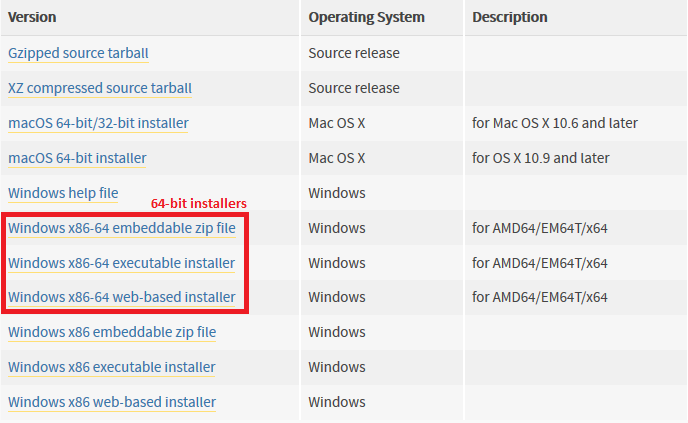
Download Python by selecting suitable version (3.7+) from releases list and scrolling down to files. Make sure to download a 64-bit version! Recommended version is Python 3.7.x 64-bit.
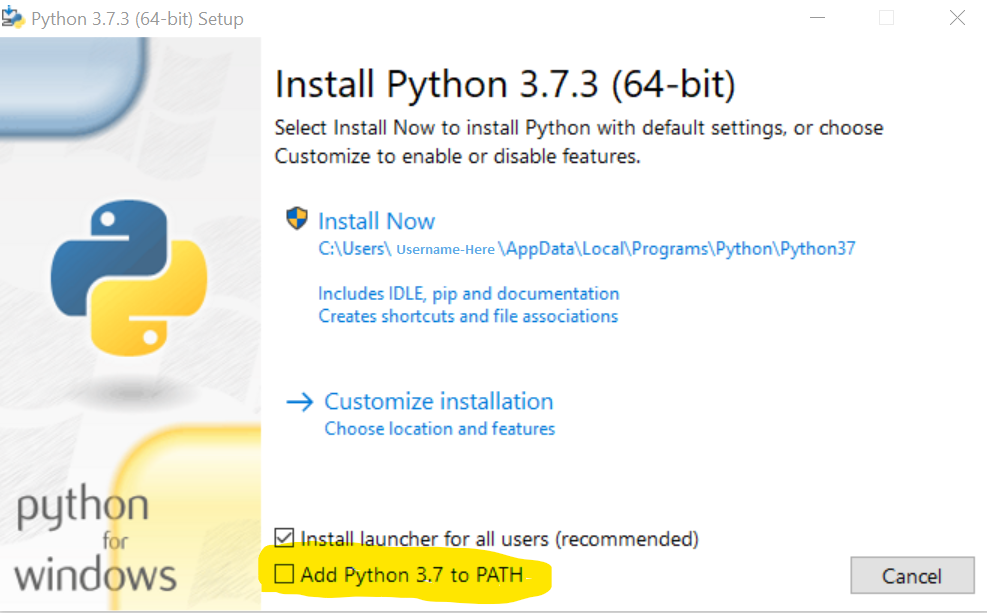
At the start of installation, check option Add Python 3.7 to PATH:
Note
Python 2 only: During installation make sure that Python is set to be installed on local hard drive (not set as default).
Note
Python 2.7.x is in maintanance mode.
To enable screencast download and install VLC player.
https://get.videolan.org/vlc/3.0.6/win64/ for 64-bit
2.2 Install QAutoFlow
2.2.1 Install with Python local environment
Go to downloads page https://customer.qautomate.fi/downloads.html
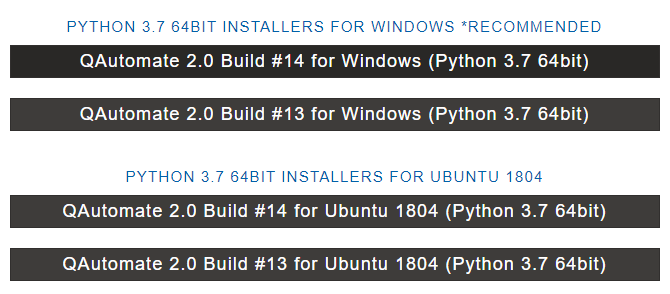
Choose a correct download of QAutomate Tools installer for your operating system. 64-bit recommended
Unzip the QAutomate.zip file you downloaded and open Command Prompt (cmd) in that folder.
In Command Prompt, navigate to the folder (shown as “INSTALL_FOLDER” in examples below) where you have extracted QAutomate.zip.
Depending on your operating system, follow one of the following steps;
- Windows: Execute install_qautomate.bat file so that required Python components are installed.
1
c:\INSTALL_FOLDER\install_qautomate.bat- Mac: Execute install_qautomate.sh file so that required Python components are installed.
1
$ ./INSTALL_FOLDER/install_qautomate.sh- Linux: Execute install_qautomate.sh file so that required Python components are installed.
1
$ ./INSTALL_FOLDER/install_qautomate.shOne more step and you are all set to launch the product. 2.3 Start QAutoflow & Pre-conditions.
2.2.2 Install with Python virtual environment
Go to downloads page https://customer.qautomate.fi/downloads.html
Choose a correct download of QAutomate Tools virtual environment installer for your operating system. 64-bit recommended
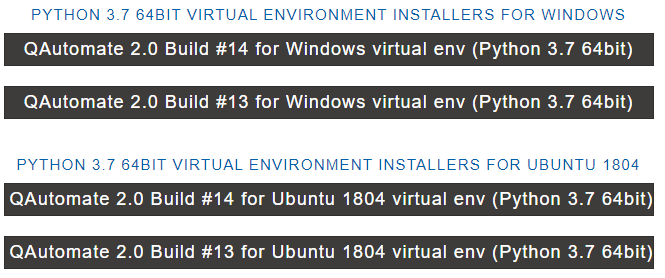
Unzip the QAutomate.zip file you downloaded and open Command Prompt (cmd) in that folder.
Depending on your operating system, follow one of the following steps;
- Windows: Execute install_qautomate.bat file so that required Python components are installed.
1
c:\INSTALL_FOLDER\install_qautomate.bat- Linux: Execute install_qautomate.sh file so that required Python components are installed.
1
$ ./INSTALL_FOLDER/install_qautomate.sh
Installation bat creates a python virtual environment in virtualenv folder where QAutoflow’s Python components will be installed. It is located in the same folder as the installation bat.
2.3 Start QAutoflow & Pre-conditions
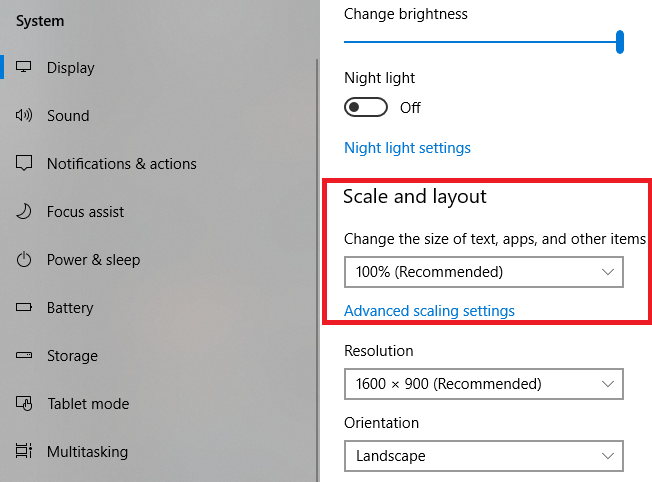
- Make sure that Windows zoom level is 100%.
- Windows: Settings - System - Display - Scale and layout
- Make sure that Chrome browser zoom level is 100%.
- Windows: Chrome - Settings - Appearance - Page zoom (Can also be adjusted in browser with CTRL + Mouse wheel)
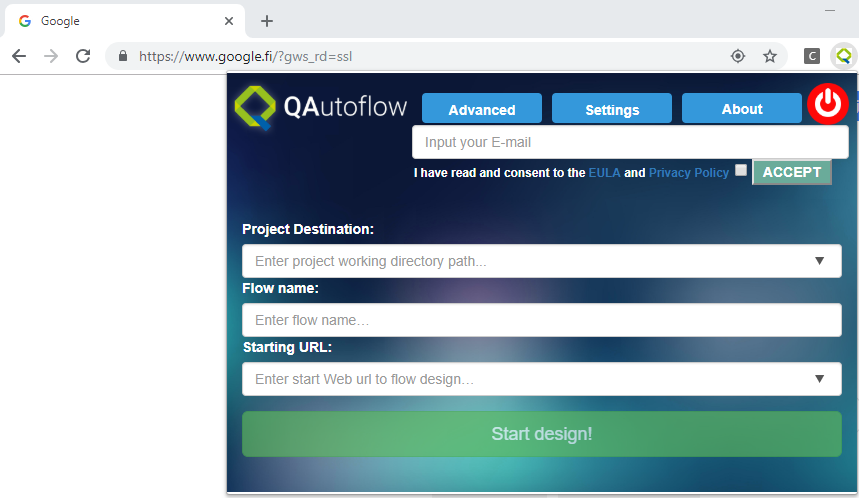
Start QAutoflow from the desktop shortcut or with Command Prompt, navigate to the folder where you have unzipped QAutomate Tools and run command “qautoflow.bat” (or qautoflow.sh).
1
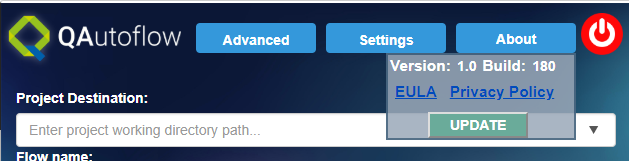
c:\INSTALL_FOLDER\QAutomate\qautoflow.batNow you can open the main dialog by clicking QAutoFlow extension icon.
3. QAutoflow UI components
QAutoflow UI components introduction
3.1 Dialog windows
QAutoflow has the following three dialogs:
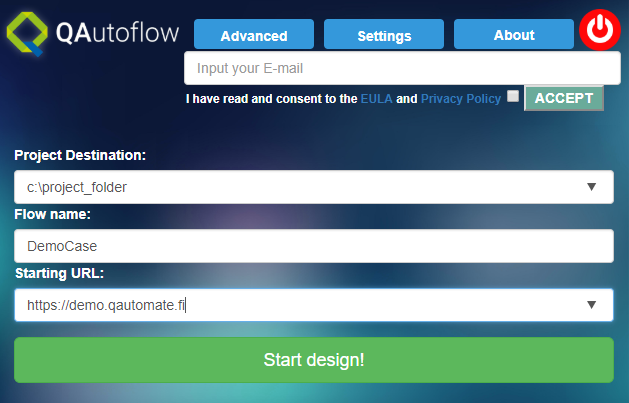
Main dialog
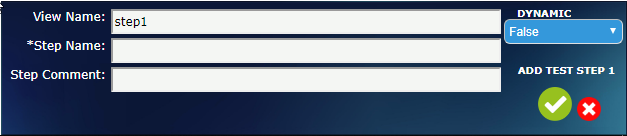
Step input dialog
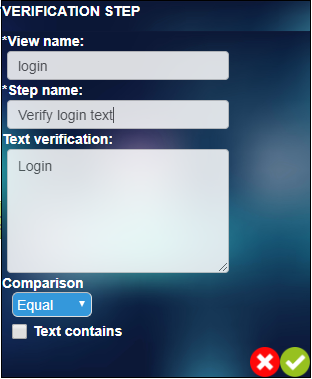
Verification dialog
3.2 Modes
QAutoflow has two modes;
- Idle mode
- Flow design mode
- The tool starts in idle mode, waiting for user input
- Select project working directory. Project Destination must be a folder with absolute path or select from dropdown history if it exists.
- Give name to the use case or RPA process. Name has to be unique.
- Set URL that acts as a starting point for the flow
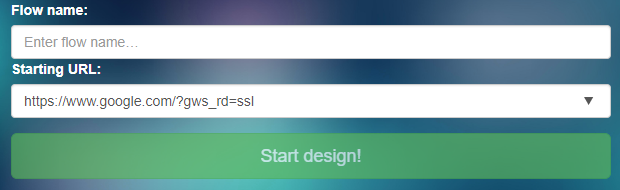
When “Start design!” button is pressed, tool goes into flow design mode and you can
- Click or input user actions and name test steps and add comments to them
- Perform series of actions ( drag-and-drop, hover menus,…) by right-clicking on it and choosing an action from the context menu
- Run robot keywords. Robot keywords and libraries must be in project folder.
- Start action chain and add verification, explained in detail in section 3.7 Right-click menu actions
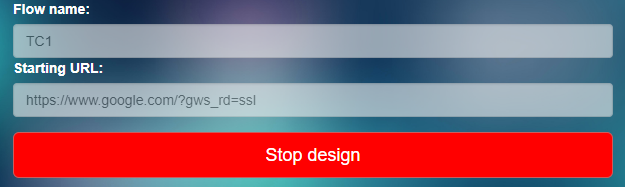
When “Stop design” button is pressed, tool goes back to idle mode. Created testcase is saved and tool waits for a new case to be started.
3.3 Main UI Flow settings
3.3.1 Flow settings
Flow user settings can be configured in json file:
c:\INSTALL_FOLDER\QAutomate\src\server\flow_settings.json
or from the Settings tab in Main dialog
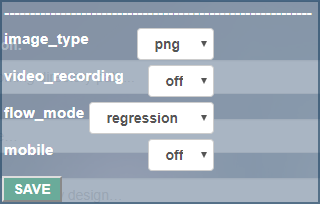
Following settings are available:
- Image type (png/jpeg)
- png (default) option
- jpeg lower quality and smaller image sizes. Use this in big image webpages.
- Video recording
- off (default): video recording screencast is off, screencast is not recorded during flow creation
- on: video recording screencast is on, screencast is recorded during flow creation
- Flow mode
- Regression: Flow steps are added and named one at a time and confirmed manually
- Exploratory: Flow steps are added automatically as you perform actions in the browser
- Mobile
- off (default): Normal flow creation
- on: Necessary for creating mobile flow, sets starting URL automatically (See 7.2 Mobile flow)
3.4 Merging project history
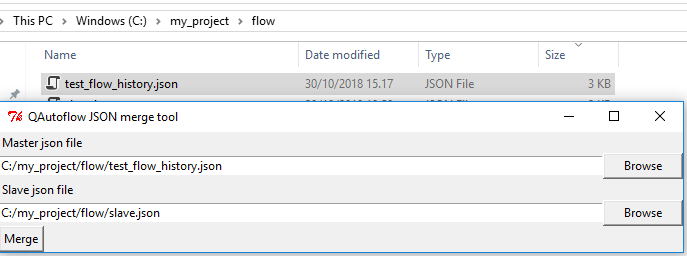
In the case of multiple users you can merge flow history files. We propose that you keep master (test_flow_history.json) history in version control which will be updated by other slave history files.
Merge tool will merge slave history to master file appending new step and new data to existing steps.
c:\INSTALL_FOLDER\QAutomate\python qautoflow_mergetool.py
3.5 Main UI Advanced settings
3.5.1 Testability attributes
UI testability is important factor recognizing UI elements. QAutoflow is analyzing and collecting element locators in recording phase. You can guide flow recorder to pick best element locator with giving testability attributes, if those exists in the web application.
Example: If project has elements with attribute data-name=”homePageButton” or data-id=”someButton”
Add testability attributes values data-name, data-id to
3.6 User toast messages
User toast messages appear at the right-lower corner of the screen and inform user about the action that just took place.


3.7 Right-click menu actions
Right-click menu items are dynamically build depending selected element properties and state. Following options available:
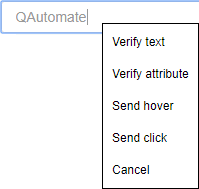
- Verify text (visible depending element properties)
- Verify value (visible depending element properties)
- Verify href (visible depending element properties)
- Verify attribute (visible depending element properties)
- Send click (visible if action chain is not started)
- Send doubleclick (visible if action chain is not started)
- Send hover (visible)
- Start action chain (visible if action chain is not started)
- Stop action chain (visible if action is started)
- Dynamic Variable (visible)
- Javascript Runner (visible)
- Windows native UI (visible)
- Run keyword (visible)
- Cancel (visible)
Verification dialog changes based on the element type to support different kind of validations. Below are mentioned a few of these.
3.7.1 Verify text
Verification of browser element’s text value
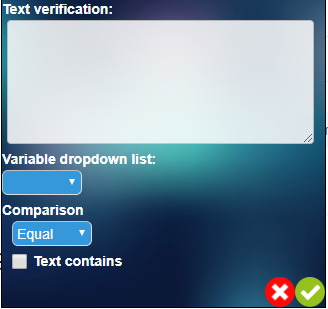
You can also choose “Text contains” verification if test needs to be done partially in the text.
3.7.2 Verify value
Verification of browser element’s value
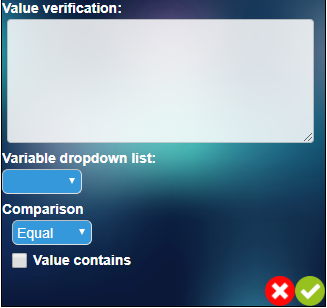
You can also choose “Value contains” verification if test needs to be done partially in the value.
3.7.3 Verify href
Verification of browser element’s href value. Element has to be link.
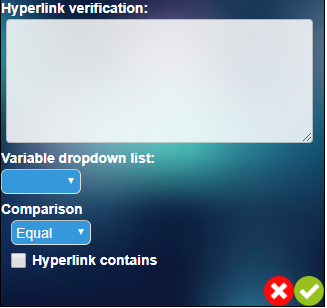
You can also choose “Hyperlink contains” verification if test needs to be done partially in the link.
3.7.4 Verify attribute
Verification of browser element’s attribute value
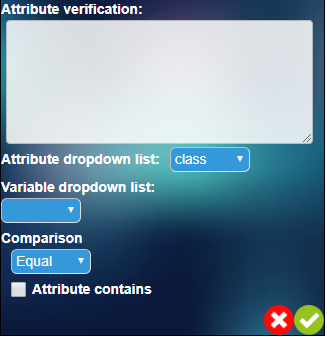
You can also choose “Attribute contains” verification if test needs to be done partially in the attribute.
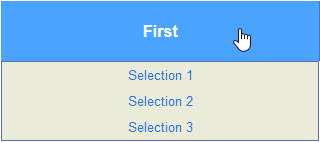
3.7.5 Send hover
This enables user to set mouse hover action to an element that needs trigger by hovering. This is useful e.g. when validating a tooltip that requires mouse hover event to be displayed.
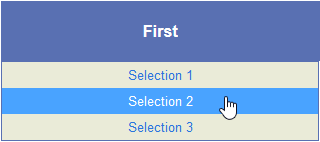
3.7.6 Send click/double click
This enables user to set mouse click action to an element that needs trigger by clicking. This is useful when recording a step that requires e.g. popup windows to be open as a starting point or when dealing with an element that requires doubleclicking
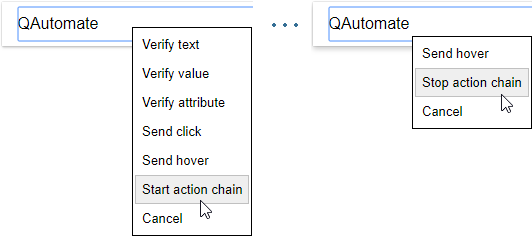
3.7.7 Start/Stop action chain
Start action chain allows user to make more than one browser action that involves e.g drag and drop, dynamic input field or dynamic hover element.
User can begin the chain of actions by selecting Start action chain, make a series of browser actions and finally end it by selecting Stop action chain.
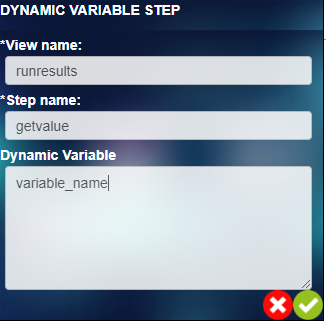
3.7.8 Dynamic Variable
Dynamic variable allows you to save changing (dynamic) data as a variable.
You can store a dynamic variable by right clicking an element which contents you wish to store for example, the price of a product in webstore.
3.7.9 Windows native UI
Tool for adding automation steps for Windows UI elements
See 7.1 Windows Native UI for details
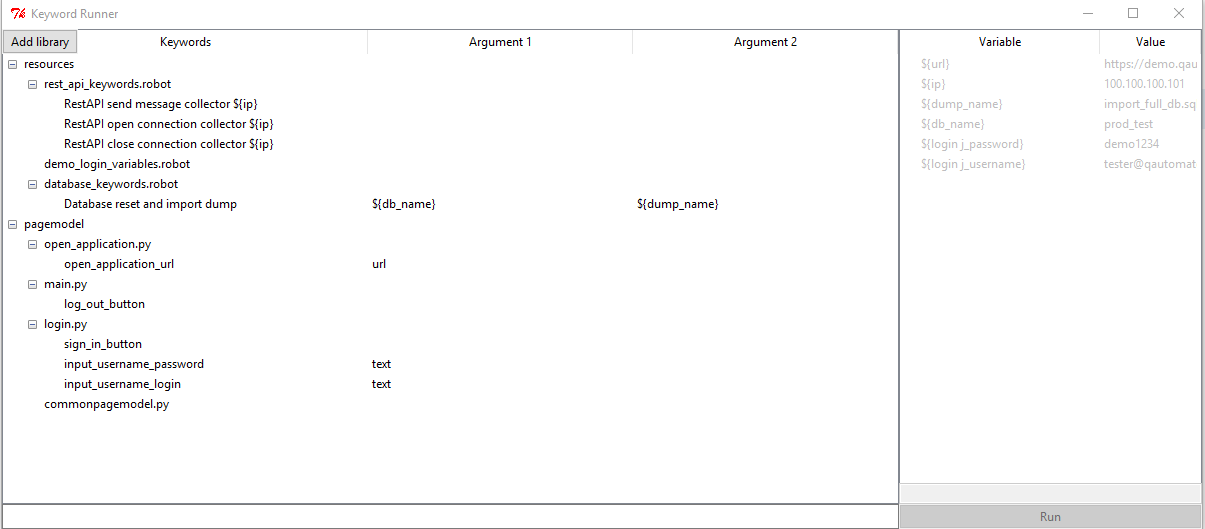
3.7.10 Run keyword
Run keyword UI includes all Robot keywords and python function which are available on project working folder
User can run keyword by selecting method from list and selecting parameters or hardcoding values in Robot framework format.
3.7.11 Cancel
Closes the context menu and another step can be created in design mode.
4. Flow creation
Description on how to make test or process design with QAutoflow extension.
4.1 Test or process design
Precondition: Special characters can not be used in
- Flow name in main dialog
- View name in step input dialog
- Step name in step input dialog
but can be used in
- Step comment in step input dialog
- Input field in verification dialog
Start recording by clicking the QAutoFlow icon in the upper right corner of the browser which will open the Main dialog, see 3.2 Modes.
- In Main dialog, select project folder, name the test flow and set URL for the page where you’d like to start your testing.
- Click “Start design!” button to activate the flow design mode.
Make a browser action on the current browser window.

Click (Left click on browser element)
Note
If browser scrollbar is needed before click action, wait 3 seconds between scrolling and clicking so that screenshot is taken.
Input, if element is e.g a textbox (Left click + Input with keyboard)
Verification (Right click + Select from menu)
Send click, Send hover (Right click + Select from menu)
After creating the test step action as described in step 2, set test step details.
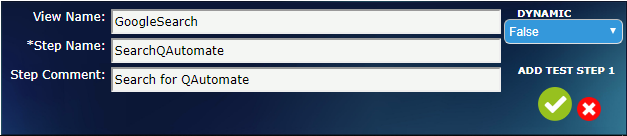
- Give view a name ( e.g login ) (mandatory)
- In the prompt you may enter view name (the view you make the step from). If the step is already in history - the tool will suggest the previously saved action.
- Give step a description (mandatory)
- Step name (mandatory field where a meaningful step name should be inserted). If the step is already in history - the tool will suggest the previously saved action.
- Give additional information (optional)
- Step comment (additional info). This comment is saved also to the test documentation.
- Choose Dynamic data as True if browser element in question is a dynamic element, which means it changes every time the page changes. In the newly opened field, input the data which you would like to test as that dynamic element’s value.
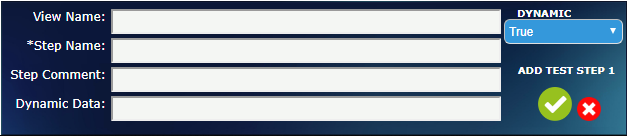
- Confirm the test step with confirm (tick) button or cancel step without adding the changes to the test flow.
- Confirmed test step will be added to the test flow.
Wait until toast message appears before continuing to next step.
- Toast message is a confirmation of screenshot of the test step being saved with highlights to the visual html report.
Repeat steps 2, 3 and 4 until you have added all test steps.
Stop flow design from Main dialog, see 3.2 Modes.
You may exit the QAutoflow application from the exit button.

4.2 Generation/Transforming
Completed flow can be generated straight from Flow UI if you have QAutoRobot transform license:
After stopping flow design, select Local TF option found under Advanced tab in UI
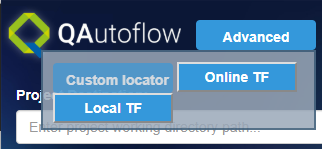
- The path where local transform generates to can be configured in:
1
c:\INSTALL_FOLDER\QAutomate\config\project_config\local_transform.json
If path is empty, files go to Flow project folder (default)
4.3 Special conditions and hotkeys
4.3.1 Working with browser tabs
While working with QAutoflow tool, only one Chrome window should be open during test. Additionally, before starting the test, in other words before pressing “Start design!” button, any extra tabs that were opened in said window should be closed.
- During test creation, if a new tab opens as a result of a test step;
- if a test step is added in the new tab, in order to proceed test creation with the main tab;
- the user should activate the main tab
- create a new test step
- and only then close the previously opened new tab
- if a test step is NOT added in the new tab, user can simply close the new tab.
Note
Browser’s back button should not be used while navigating through tested pages.
4.3.2 Hotkeys
- Hotkeys for special cases:
- Recognize web iframe open
- Ctrl + Shift + 1
- Locators shortcut
- Ctrl + Shift + 2
- Comment shortcut
- Ctrl + Shift + 3
5. Flow design results
Saved files are under project_folder
- Flow directory contains:
- Test flow history file
- Usecase name e.g demo directory contains
- flow.html visual HTML from use case
- test.flow.json.enc script data encoded format
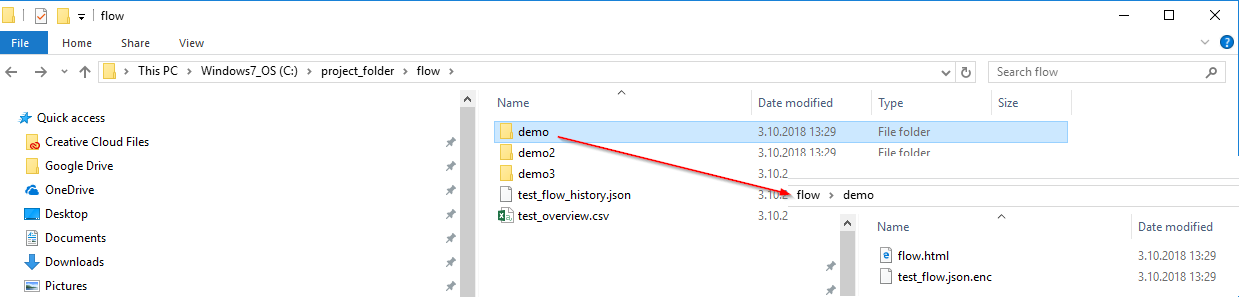
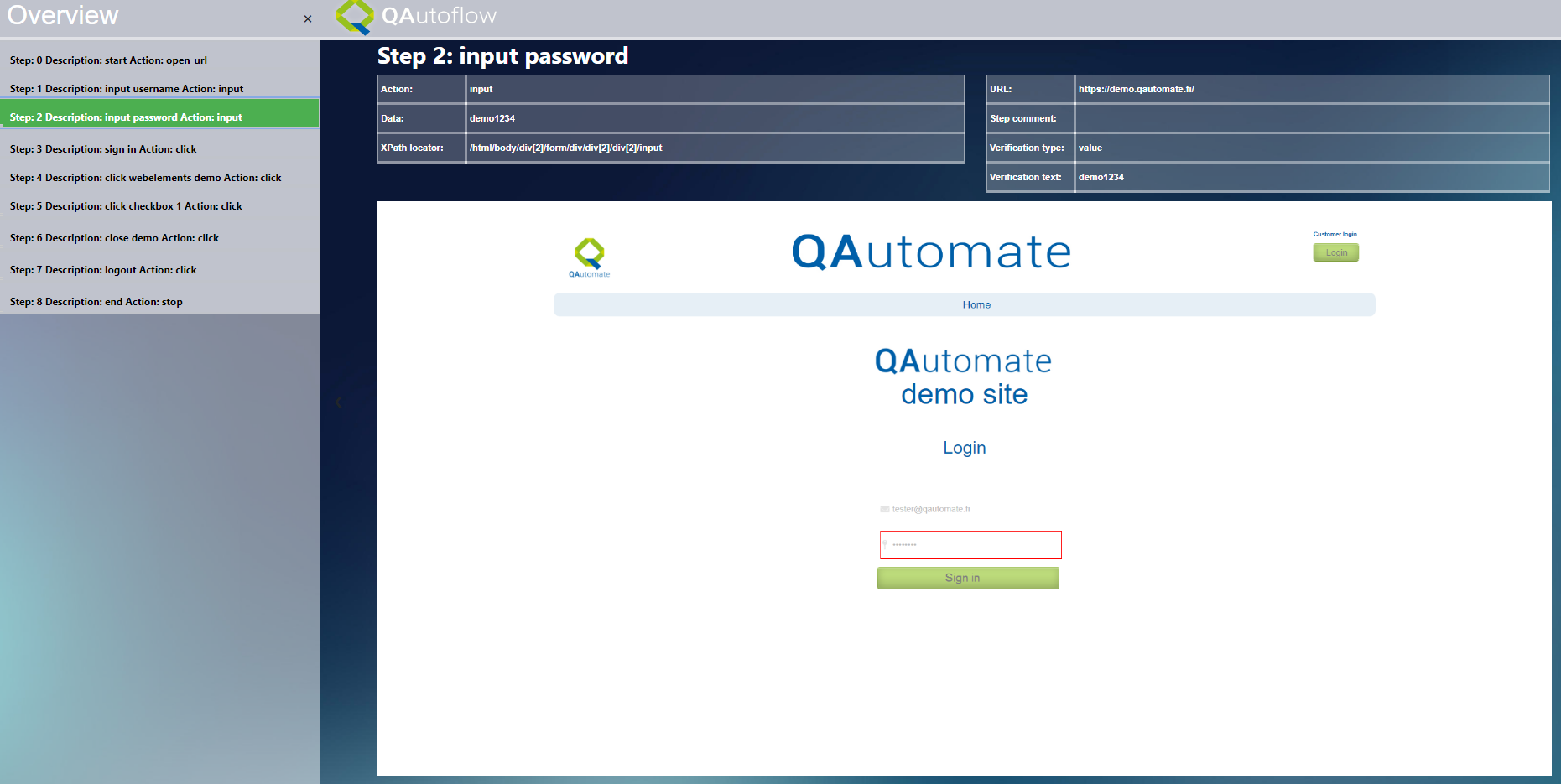
Visual html can be found under usecase folder with the name flow.html.
CSV test documentation
6. Tips and Tricks
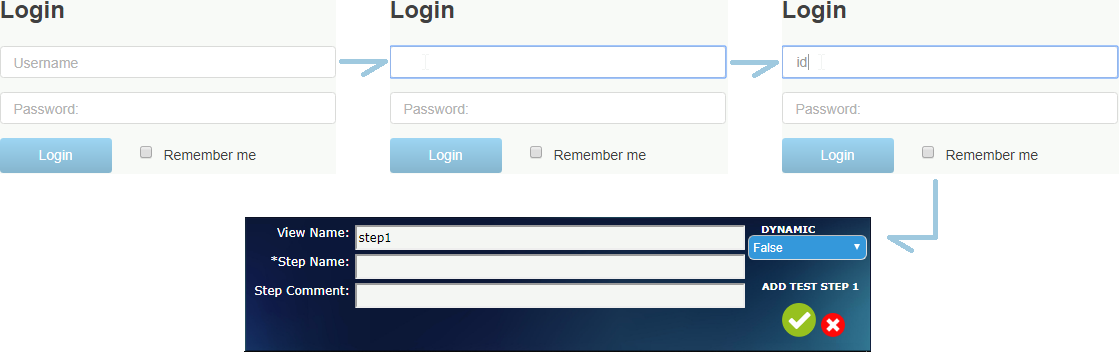
Always wait until toast message appears before continuing to a new test step
If you click an input field, enter the input before adding the test step. See example below
Test flow history merging
QAutoflow creates test_flow_history.json file which stores data from each test step. Test flow history merging functionality makes possible to merge two different test_flow_history.json files. E.g. if you have two QAutoflow projects which have a different tests and steps and these projects histories needs to be merged, it can be done by running merge_history_files.py.
How to use merge_history_files.py:
Let’s say we have a two QAutoflow projects, QAutoflow_master and QAutoflow_slave which both are located under C: Drive
- In Command Prompt, navigate to QAutoflow_master folder
1
cd c:\QAutoflow_master\QAutoFlowDesigner- Run command:
1
python merge_history_files.py -m test_flow_history.json -s c:\QAutoflow_slave\QAutoFlowDesigner\test_flow_history.jsonParameter -m represents master json file
Parameter -s represents slave json file
Only the data that slave json file has but master json file has not will be merged. If history files has the same data e.g. login steps data, it will not get overwritten from slave to master. Merged history file will be saved in current working directory as a result.json file.
7. Examples
7.1 Windows Native UI
During flow creation choose Windows native UI from right-click menu
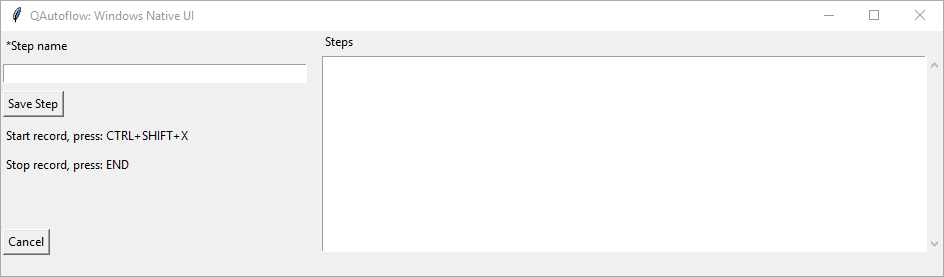
Press CTRL+SHIFT+X to start recording, the tool will minimize
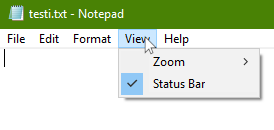
Make actions, in this example we click in notepad menus and input text
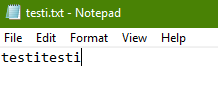
Press END to stop recording, the tool will pop up and you will see your actions in steps
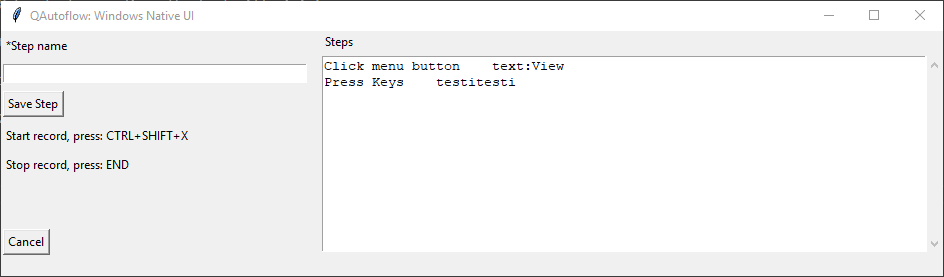
Enter step name and save step. Step is addede to flow.
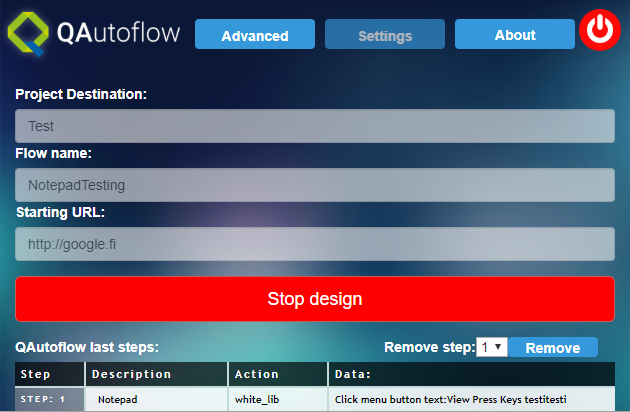
Continue with flow or stop design.
7.2 Mobile flow
- Make sure that
- mobile setting is on (default:off), change and restart flow if needed
- android emulator is running
Starting URL should point to mobile_screen.html

Start design
To launch an app, enter APK name or package name and press launch
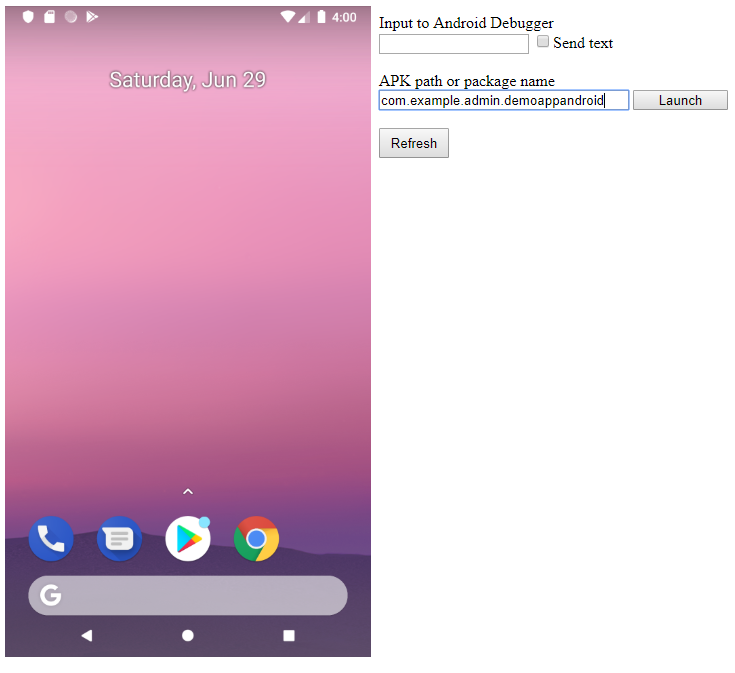
Wait for toast messages to disappear and screen to refresh
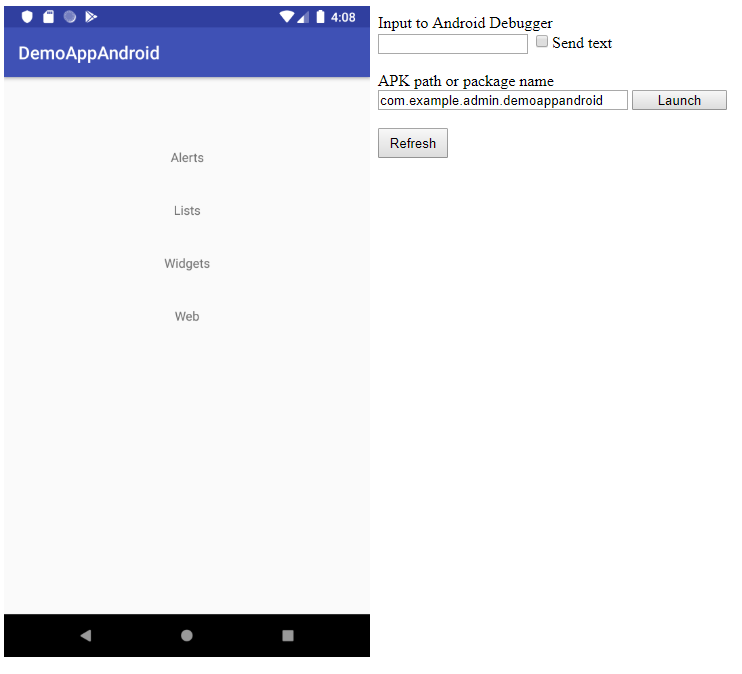
Click screen to send taps/navigate (here we are navigating to widgets)
Note
Remember to wait for the screen to refresh and toast messages to disappear before adding steps
To send text, enter text in Input to Android Debugger field and check “Send text”-box
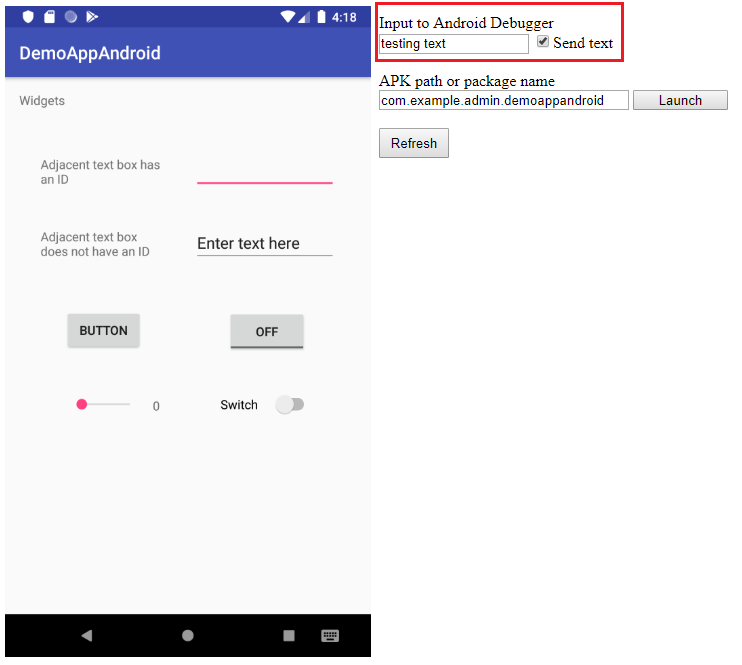
Click the point on screen where you want to send the text
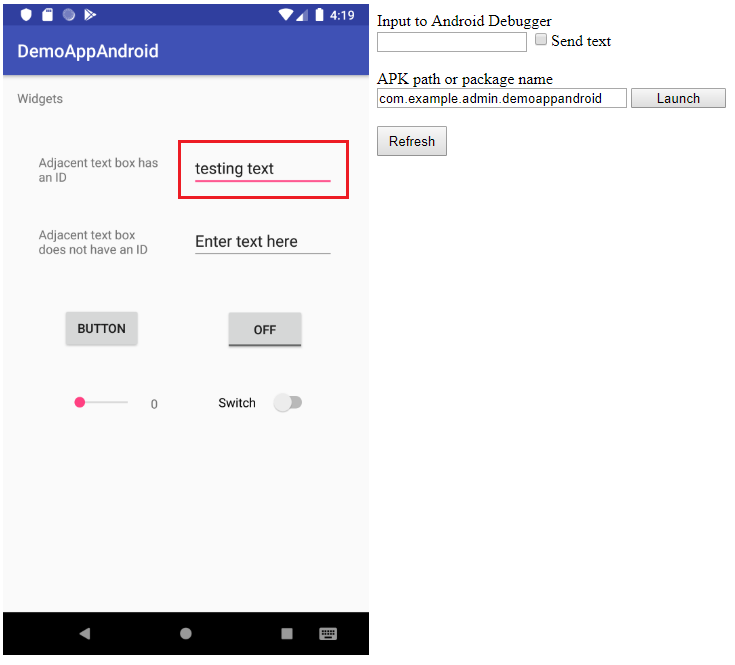
Note
You can use Refresh button if the html page and emulator aren’t synced