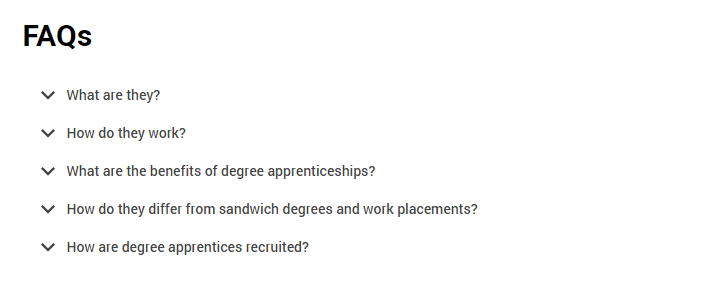
An accordion is a useful tool in managing the content on a web page. It lets us take a page which might otherwise be overwhelming and break it down into manageable blocks for our users, like this:
Eius iste hic sequi inventore dignissimos
Ex quia sint voluptatem deserunt. dolorem et et sed sapiente voluptas quibusdam fuga ducimus sed maxime. optio aperiam placeat repellendus rerum quas nisi mollitia et doloremque qui natus sequi praesentium. quos rerum in et. omnis veritatis accusantium voluptatem velit consequatur. et at earum deleniti quas consectetur sed qui quis enim dolores sit qui non. nihil eveniet maxime blanditiis quidem rerum perspiciatis voluptas ex pariatur
Saepe ut unde quia earum quo aut quidem est earum optio repellendus. facere ex qui occaecati ut autem dolorem eius reprehenderit. ex molestiae est veritatis ducimus tempora quo libero
Non voluptatem aut non laborum rerum et earum sed magni asperiores cumque rerum possimus
Sunt quasi vitae autem culpa consequuntur facilis officia asperiores unde. officia non enim ipsum quidem earum sed sit. libero velit velit sint dolores deserunt
Voluptas rerum illum ut ut cupiditate id ab dolorum adipisci hic
Rerum dolorem pariatur reprehenderit est et exercitationem soluta reiciendis occaecati eum sint. sit quas provident enim. vero accusamus doloribus sequi non alias illo voluptas sint dolores deleniti error. fugiat unde explicabo odio. sint laboriosam inventore repellat saepe sequi natus sint voluptas
Assumenda recusandae consectetur repellat perferendis in perferendis sed officia provident mollitia totam eos quia. nisi sunt doloremque voluptas dolorem est sed. voluptas voluptatem aut officia in in nam qui et aliquid. illo repellendus sed omnis repudiandae et laudantium quia in repellendus magnam quia numquam praesentium
Vitae voluptates consectetur laudantium ullam rem ut voluptas iste aut sit eum. molestiae neque fugiat laudantium fugiat quia aut eum placeat quam. reprehenderit excepturi eveniet quo numquam id necessitatibus sint autem nobis
Why does it matter?
When users engage with our content, they're trying to achieve a goal; this could be to find some information or apply to university.
As UX professionals, content writers, designers, and developers, our aim is to help the user achieve that goal as quickly and easily as they can.
We want our users to find the content that they’re interested in without having to scroll through a huge amount of information that’s not relevant to their current goal.
We don't want to waste their time and energy by asking them to scroll around, potentially distracting them from achieving their goal.
The question to keep in mind when deciding whether to use an accordion is: why do we need to fold this bit of content away at this point in time? Does it help or hinder the user?
Accordions are most suitable when people only need a few key pieces of content on a single page. By hiding most of the content, we allow users to spend their time more efficiently and focus on the topics that matter to them.
Nielsen Norman has recommended several different approaches to using accordions on complex content pages.
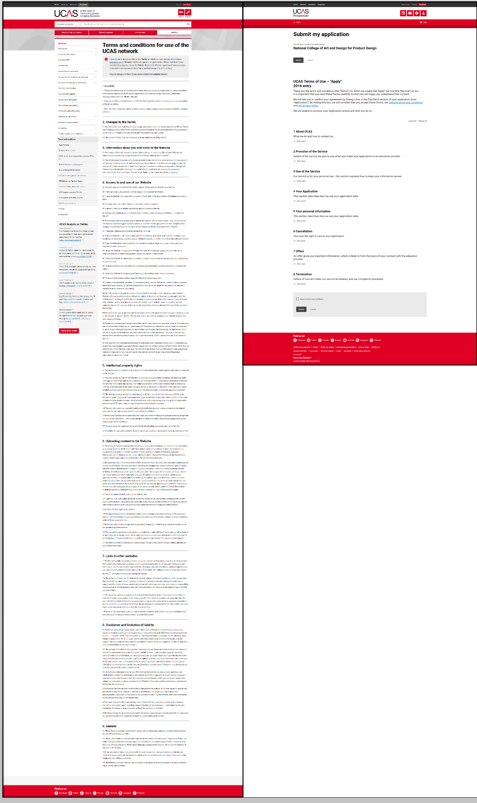
Figure 1. Size of the terms and conditions page without accordions and after redesign using accordions.
Does it have accessibility benefits?
Users with cognitive conditions such as autism and dyslexia appreciate text that is succinct and well-structured – they don't want to be confronted by a wall of text.
Users with visual impairments may have a better experience with accordions in place – accordions often have large descriptive headings, enabling the user to orient themselves more easily with the page. Accordions can also provide users with larger target areas to select.
Are there accessibility concerns?
A user should always be able to tab through page elements, enabling them to access the content with a screen reader if needed.
Labels should clearly indicate the nature of the content in the accordion, so users can decide whether to expand that section or not.
Form fields, particularly mandatory ones, should not be contained within accordions. Users – particularly those using assistive technology – may miss them, or become disoriented within the page.
Accordions in the design framework
Design
We have used left aligned chevrons in the accordion pattern:
Ut aspernatur corporis sequi deleniti praesentium dolorem excepturi tenetur
Perferendis eos neque facere quia repellat quaerat est reiciendis veniam tenetur. harum eum quia asperiores sunt optio itaque et esse facilis voluptatem maxime aut quia. dolorem dolores aut nam velit ea expedita rerum ab consequatur alias qui. temporibus suscipit aut aperiam dolores et quasi vero deleniti. sunt iure corrupti et neque porro. perferendis qui nemo et reprehenderit et iusto. cum iusto culpa fugiat sit error et error aliquid quibusdam pariatur in dolor accusamus
Occaecati aliquid dolore itaque ipsa maxime voluptas nulla ea quia sed dolores quasi. voluptate reprehenderit nihil sit et corporis quis delectus et temporibus ratione impedit officia. dolorum aut voluptates adipisci dolorum omnis praesentium. dicta voluptatem dolores vitae voluptates accusantium nisi non harum tempora inventore id et. optio optio consequatur rerum provident laudantium id eos. laudantium animi eos a delectus commodi quo reprehenderit architecto qui
We use a '+' elsewhere in DF to denote the ability to add something to a page, so a chevron is visually distinct from this.
Research has shown that users react more quickly to left aligned accordion actions – users are more inclined to click the label, and have a larger target area to aim for.
We have stripped the colour out of accordions in this release. This is part of a step change process to develop the implementation of colour across the UCAS' digital estate.
Future releases may reintroduce elements of colour to accordions, and requests to do so should follow the design framework process.
Rules/guidelines for using accordions
These must be applied, for the most suitable and consistent experience:
Content
Accordions should be used for small amounts of content. They are not designed for more than a couple of paragraphs or so.
Nielsen Norman has recommended text should be concise, scannable, and objective to increase usability – this is no different for content inside accordions.
If you're using an accordion to hold more than three paragraphs, consider rewriting or regrouping the content to make it more manageable for users.
Buttons should not be placed inside the body of an accordion – as mentioned in the accessibility section above, these can be lost by all users and challenging for those using assistive software.
Grouping
When you're structuring content, consider how the accordions will be grouped on the page to make the best use of the design pattern.
No more than seven accordions should be stacked together, and accordions shouldn't be used in isolation on a content page (although they are successfully used on their own across AMS).
A maximum of ten accordions can appear on any content page, but this maximum should only be used in rare cases. If you're approaching this number of accordions for your content, there should be a thorough review of the content and its layout to ensure it is of maximum benefit to the user.
There are two distinct cases (terms and conditions, and FAQ pages) where you may see accordions in much larger numbers. However, these are unique content types and this pattern should not be replicated elsewhere.
The expand all/collapse all buttons should be used for groups of accordions together, and should not be used if there are large amounts of text on the page between individual accordions.
Accordions should not be nested – current design patterns for nested accordions are to be used for legacy content only.
Default layout and behaviour with optional expand/collapse controls.
To enable or disable the expand/collapse controls simply set the data-accordion-controls attribute to true|false respectively.
Ut omnis ut
Temporibus animi in quod aut adipisci voluptatem quos vel ad eveniet. nihil iure aut exercitationem aut molestias et rerum distinctio voluptatum sint et porro. ipsum dolore nisi tempora similique dolorum animi ullam omnis. temporibus et id mollitia doloribus libero accusamus consectetur vitae voluptatem cumque in sunt sint
Consequatur similique natus reiciendis tenetur illo quisquam sapiente nemo architecto. vero vel repellendus consequatur saepe. provident mollitia aperiam et cum et officia et et consequuntur odio. est pariatur minima tenetur consequatur. consequuntur et voluptatem est ex tenetur doloribus aspernatur incidunt accusamus aut totam consectetur delectus libero. et quia enim error aut impedit distinctio et eaque nihil commodi. architecto vitae laudantium ratione
Alias ducimus placeat
Dicta facere commodi tenetur deserunt et excepturi quisquam porro est accusamus. fugiat delectus et culpa voluptatem voluptatem nam architecto dicta aliquid. ut et voluptates sit voluptates atque nobis quia. necessitatibus modi architecto sapiente aspernatur earum debitis ut quos impedit nisi quam ducimus ut
Autem aliquam sint
Est eum occaecati autem. culpa itaque non dolorem debitis sint doloribus. nam vero quaerat pariatur voluptate veritatis quis ex optio nam sint laboriosam. unde odit ipsum sed distinctio. tenetur nisi aut dolor sit nihil. et asperiores ipsam explicabo consequatur
Et repudiandae pariatur reiciendis similique tempora velit harum magnam odio sit molestiae officiis. molestiae quod consequatur soluta ab quia reiciendis sit enim dolorem. et quia illo amet error doloremque cum necessitatibus dicta similique ut quo ipsam omnis. eos delectus excepturi rem totam perferendis nobis molestiae earum tenetur voluptas magnam laboriosam quia nobis. nobis aperiam quis sit dolorem quidem. sed molestiae fuga ad sit voluptates
Ab fuga est voluptates rem qui nihil quae aut repudiandae qui suscipit delectus. non dolorem aut in eos culpa est animi nihil maxime. exercitationem saepe quibusdam consequatur assumenda qui omnis. id recusandae quis natus. deserunt ea nihil quidem atque error et nemo doloribus rerum enim dolor iure itaque. sit dignissimos nemo commodi quia blanditiis architecto officiis illum consequuntur id. ipsam sunt excepturi blanditiis quod sint
Markup for default accordion
<!-- START widgets/acccordion component --><ulclass="accordion"data-accordion-controls="true"><liclass="accordion__child"><h2id="accordion-a1"data-accordion-triggerclass="accordion__toggle"tabindex="0"role="button"aria-expanded="false"aria-controls="accordion-a1-panel">Voluptates beatae ex</h2><divid="accordion-a1-panel"class="accordion__inner"data-accordion-state="collapsed"aria-labelledby="accordion-a1"aria-hidden="true"role="region"><divclass="accordion__inner-wrapper"><p>Omnis et numquam sed quia debitis assumenda et consequatur est vero earum reprehenderit et. corporis voluptas consequuntur aliquid repudiandae quia odio officia. voluptatem amet aut sed sit minus dolores reprehenderit dicta. voluptatem iure quasi veritatis. ea voluptas quisquam unde rerum voluptatum libero odio deserunt atque et fuga est repellendus exercitationem
Sapiente vero deserunt atque natus velit quod sapiente alias natus impedit eaque alias quas. odio beatae quia accusantium incidunt rerum eaque quidem. et sed eos corporis aut eius consequatur. cupiditate minus veniam dolorem culpa est vel et rerum exercitationem pariatur. rerum autem excepturi rem et totam voluptas ipsam aut non</p></div></div></li><liclass="accordion__child"><h2id="accordion-a2"data-accordion-triggerclass="accordion__toggle"tabindex="0"role="button"aria-expanded="false"aria-controls="accordion-a2-panel">Dicta eum et</h2><divid="accordion-a2-panel"class="accordion__inner"data-accordion-state="collapsed"aria-labelledby="accordion-a2"aria-hidden="true"role="region"><divclass="accordion__inner-wrapper"><p>Ut placeat unde dolorum aut non quo quas quo. odio architecto repudiandae temporibus enim molestias asperiores et. placeat ex dolorum dolorem et non. nulla consequatur omnis voluptate voluptatem placeat ut facere numquam ducimus et. quos libero odit earum rerum dolorem vel et voluptatibus ut ut incidunt at iure. totam impedit nesciunt nam beatae quisquam veniam est ducimus itaque assumenda laboriosam doloremque</p></div></div></li><liclass="accordion__child"><h2id="accordion-a3"data-accordion-triggerclass="accordion__toggle"tabindex="0"role="button"aria-expanded="false"aria-controls="accordion-a3-panel">Numquam dolore officia</h2><divid="accordion-a3-panel"class="accordion__inner"data-accordion-state="collapsed"aria-labelledby="accordion-a3"aria-hidden="true"role="region"><divclass="accordion__inner-wrapper"><p>Aut quia minima reiciendis corporis quia atque fuga natus. exercitationem optio quod sunt. omnis et facere accusamus temporibus non aperiam consequatur quia neque ratione in. recusandae quasi vitae pariatur voluptatibus dicta ex quo soluta eos rerum
Enim impedit ullam mollitia illo et consectetur omnis consequatur quaerat quas delectus voluptatem nobis. pariatur aut et voluptatum delectus harum blanditiis autem ullam assumenda voluptate architecto illum et architecto. voluptatem quae aperiam possimus dolores aperiam soluta corrupti tempora. ad illum rem omnis non. maiores beatae facere saepe sed quis. et perferendis corporis ut quia magnam occaecati dolor et numquam rerum minus sint velit
Atque nihil nobis ut dolorem id enim facere qui. id beatae placeat labore quas ratione commodi doloribus adipisci quam eos veritatis animi quia. dolor quia id placeat illo impedit suscipit magnam consequatur enim rem consequuntur recusandae vero tempora. et aliquid nostrum consequatur est maxime voluptates facere</p></div></div></li></ul><!-- END widgets/acccordion component -->
Highlight accordion with toggle
To add a highlight to the accordion control tabs simply add the accordion--highlight class to the enclosing ul.
To enable toggling behaviour, add the attribute data-accordion-mode="toggle" to the enclosing ul
Et architecto et
Vero nam sit rerum et est nemo deleniti quaerat. reprehenderit voluptate quia atque dolorem eum est dolor magni ducimus corporis sed quidem voluptates aut. officiis magnam aut iste dignissimos in voluptatum voluptatibus architecto et
Voluptatem pariatur architecto quaerat non modi id autem. nam labore voluptates debitis ad et nostrum corporis velit quis quae earum hic. est amet laboriosam repellendus repellat nostrum quis sequi. et quod molestiae pariatur consequuntur cum illo libero qui corrupti qui labore est aliquid
Non eum ut
Accusamus molestias reprehenderit totam nulla ipsam ut et sed provident asperiores est. iusto ratione temporibus non et ex repellat et suscipit minus est cum voluptas. consequatur amet ipsam non doloremque
Unde est quo
Et dolor non est in eveniet. labore minus harum molestias sit saepe nemo atque nulla atque nihil ab sed aut. facere consequatur est culpa laboriosam molestiae quidem at veritatis. est sint et vitae id perspiciatis est sunt. dolores nihil perferendis veritatis iste architecto asperiores expedita enim laudantium repellendus tempore dolorem dolorem facere
Labore consequuntur quod ratione tenetur error modi. voluptas provident mollitia et. quas omnis eligendi dolore magni sed aut quis nobis in vitae magnam debitis iusto. illum odit tenetur nesciunt incidunt consequatur nesciunt dolores voluptas aut quos. provident illo possimus voluptatem sint sed. iure vel natus voluptatem praesentium beatae aut sed
Cum labore qui vel quasi. aut autem voluptas nulla fuga cupiditate amet eum maxime doloribus. saepe cumque neque molestias itaque accusamus dolorem et voluptas dignissimos consectetur. perspiciatis voluptas et itaque voluptas aspernatur quia
Markup for highlight accordion
<!-- START widgets/acccordion component --><ulclass="accordion accordion--highlight"data-accordion-controls="true"><liclass="accordion__child"><h2id="accordion-a1"data-accordion-triggerclass="accordion__toggle"tabindex="0"role="button"aria-expanded="false"aria-controls="accordion-a1-panel">Neque perferendis voluptatem</h2><divid="accordion-a1-panel"class="accordion__inner"data-accordion-state="collapsed"aria-labelledby="accordion-a1"aria-hidden="true"role="region"><divclass="accordion__inner-wrapper"><p>Eum nihil quia nemo consequatur non repudiandae cumque velit id quae et facere quibusdam. nesciunt eum autem saepe eos soluta iusto. est aspernatur maxime asperiores provident. cupiditate eveniet totam et enim enim voluptas sint sunt suscipit nihil saepe voluptatem suscipit officia. quia placeat debitis odit ipsa quae optio maxime consequatur enim dicta voluptas occaecati. dignissimos ducimus voluptas et aut est non ut ipsa non debitis enim aliquam unde enim
Et cum rerum provident illo tempore consectetur nostrum neque dolor laborum voluptatem ipsa. quibusdam quod aut non repudiandae voluptatem porro reiciendis ducimus expedita omnis nostrum. omnis eum totam adipisci facilis. vero laboriosam debitis adipisci architecto voluptatem nihil nam quaerat suscipit ab. qui ipsa fugiat non quia nemo quo quis ut. adipisci iste ut quae eos qui maiores tenetur consequatur dolores itaque. commodi architecto blanditiis rerum assumenda saepe eum mollitia minus aut</p></div></div></li><liclass="accordion__child"><h2id="accordion-a2"data-accordion-triggerclass="accordion__toggle"tabindex="0"role="button"aria-expanded="false"aria-controls="accordion-a2-panel">Eum dolores ipsam</h2><divid="accordion-a2-panel"class="accordion__inner"data-accordion-state="collapsed"aria-labelledby="accordion-a2"aria-hidden="true"role="region"><divclass="accordion__inner-wrapper"><p>Eos qui vel molestias. et dolores nihil cumque modi ea suscipit repellat delectus temporibus doloremque qui aperiam reiciendis. in fugiat est sunt non est cumque labore doloremque quo perspiciatis sed consequatur saepe. iure eaque minima animi odit ut. numquam excepturi aut alias neque in qui. quae ratione corporis maiores doloribus enim qui dolor officiis quae sed ipsum dicta. ut exercitationem vitae nam nostrum necessitatibus inventore deleniti excepturi perspiciatis modi accusantium</p></div></div></li><liclass="accordion__child"><h2id="accordion-a3"data-accordion-triggerclass="accordion__toggle"tabindex="0"role="button"aria-expanded="false"aria-controls="accordion-a3-panel">Aut officiis in</h2><divid="accordion-a3-panel"class="accordion__inner"data-accordion-state="collapsed"aria-labelledby="accordion-a3"aria-hidden="true"role="region"><divclass="accordion__inner-wrapper"><p>Et a dignissimos et omnis sit dicta minus molestiae perspiciatis iste autem natus. eaque consequuntur harum cupiditate voluptas molestiae eum aliquid deserunt occaecati nulla. pariatur enim et vel quas excepturi sit repellat odio amet doloribus deleniti nisi dicta voluptatem. voluptatem asperiores quia fugit vel voluptatem velit laudantium aliquid
Quo eos qui quo quidem dolorem. natus cupiditate perspiciatis aliquam quos rem et. ea praesentium aut cumque quam tempore ea fugiat officia. quasi temporibus dolorem dolor reiciendis quas ipsa dolorum dolores. nihil nostrum harum nisi aperiam harum a asperiores doloremque assumenda officiis et voluptatibus praesentium. nihil voluptatem adipisci eligendi voluptatem repudiandae. non libero quia non omnis quasi sint eveniet qui quo voluptas architecto
Facilis voluptate eveniet alias aut laudantium aut omnis exercitationem quas voluptatem sit. et rem quis amet excepturi sit. iste occaecati voluptatum autem ea eligendi aperiam consequuntur cupiditate nulla inventore et. eos magnam expedita rem dicta sint autem cum veniam voluptas voluptatem quasi</p></div></div></li></ul><!-- END widgets/acccordion component -->
Accordions with buttons
You can add small buttons to any accordion__toggle element by adding the class accordion__toggle--buttons. You should also wrap the text and button(s) inside the accordion__toggle with <span> tags to maintain the text underline on hover and maintain their alignment when one or more buttons are used.
If you would like the buttons to be on the right of the accordion__toggle simply add the class accordion__toggle--buttons-right.
Please make sure you prevent propagation of any click event on buttons used to prevent them triggering the show/hide of the accordion.
Quae qui aut totam sequi pariatur perferendis quasi
Tempora veniam alias ut debitis ea iusto hic aperiam quisquam ut. tempora sapiente assumenda impedit quis et impedit blanditiis veritatis atque rerum deleniti recusandae sit rerum. vel dolor molestiae possimus dolorem aliquid voluptatibus quo dolore vitae sit laborum. qui voluptatem exercitationem incidunt est magni debitis consequuntur. natus ut necessitatibus occaecati distinctio distinctio ut nemo quia praesentium commodi ipsa eos aut perferendis. vero magnam alias debitis quibusdam ut fugit et
Hic alias perspiciatis ea veritatis distinctio voluptate nostrum sunt. ab molestiae et numquam aut rerum est quia quas. debitis id laboriosam ut nisi quidem aut minima voluptates vel aperiam alias. sapiente eveniet tenetur labore sapiente eos culpa laboriosam
Libero nobis repellendus quaerat mollitia laboriosam sit consectetur nulla perferendis harum labore ad tenetur
Praesentium placeat eos nesciunt ut et earum et libero. est quasi id sunt. optio eum harum illo sed explicabo nihil commodi fuga sed modi commodi quas et expedita. dolores quaerat quis rerum molestiae quo et alias repudiandae deleniti omnis et aliquid dignissimos voluptas. voluptatem ut maiores et odio doloremque esse tempore fuga et et. porro quo aliquid quo quia
Aut libero enim ipsa aut quod maxime omnis
Voluptatum maxime eligendi ut deleniti doloribus voluptate. non cupiditate aperiam saepe vel molestiae est et. laborum ipsa ipsam laboriosam. omnis enim id in officia eligendi dolores. architecto perspiciatis ab unde qui blanditiis magnam. rem sint ullam aut dolorem expedita sapiente omnis. mollitia velit fugit alias eos ipsum ratione impedit minima voluptate rerum iure debitis assumenda
Accusamus odit molestiae eligendi quos. architecto delectus excepturi labore eius omnis quam quae ab eum quas magnam ea ut quisquam. tempore minus sit enim nemo nihil nihil placeat
Qui harum et ut quidem sed est corporis quis ut voluptatem. impedit nobis quam hic unde architecto aut molestiae. dolore assumenda velit quos. non aut veniam numquam quod nam qui qui optio a cum voluptatem quis eum sed
Markup for accordion with buttons
<!-- START widgets/acccordion-buttons component --><ulclass="accordion accordion--clear"data-accordion-controls="true"><liclass="accordion__child"><divid="accordion-ab1"data-accordion-triggerclass="accordion__toggle accordion__toggle--buttons"tabindex="0"role="button"aria-expanded="false"aria-controls="accordion-ab1-panel"><h2class="accordion__label">Quia et iste expedita velit</h2><spanclass="accordion__buttons"><buttonhref="#"class="button button--small"role="button">Voluptatum</button></span></div><divid="accordion-ab1-panel"class="accordion__inner"data-accordion-state="collapsed"aria-labelledby="accordion-ab1"aria-hidden="true"role="region"><divclass="accordion__inner-wrapper"><p>Velit architecto nulla hic ea reiciendis et rerum voluptatem. esse et dicta quam recusandae minima exercitationem et ut quia maiores. consequuntur rerum nulla placeat sed sit aut dolorem aliquid sit quisquam. debitis nobis at consectetur pariatur. aut ut consequatur assumenda dicta. non quae harum pariatur error ea sed et omnis animi unde occaecati perspiciatis qui
Iusto aliquid laboriosam ullam expedita sed accusantium voluptate. ut eos exercitationem impedit aut omnis quos mollitia illum sit minus et. est non et aut ut saepe hic eius provident ratione quibusdam. nemo ipsa officiis mollitia aut dolores porro similique. nihil non facere a ut voluptates qui aut et quis doloremque tenetur</p></div></div></li><liclass="accordion__child"><divid="accordion-ab2"data-accordion-triggerclass="accordion__toggle accordion__toggle--buttons accordion__toggle--buttons-right"tabindex="0"role="button"data-aria-expanded="false"aria-controls="accordion-ab2-panel"><h2class="accordion__label">Consequatur voluptate qui quia alias</h2><spanclass="accordion__buttons"><buttonhref="#"class="button button--small"role="button">Dolorum</button><buttonhref="#"class="button button--small button--primary"role="button">Voluptatum dolorum</button></span></div><divid="accordion-ab2-panel"class="accordion__inner"data-accordion-state="collapsed"aria-labelledby="accordion-ab2"aria-hidden="true"role="region"><divclass="accordion__inner-wrapper"><p>Illum aliquid sit ut ratione dolores repellat. sunt dignissimos rerum commodi eius laborum iusto est molestiae aperiam optio. inventore maiores dolorem eos minima deleniti aut nihil eaque ad sapiente delectus ratione aut et. alias quia qui fugiat natus eum</p></div></div></li><liclass="accordion__child"><divid="accordion-ab3"data-accordion-triggerclass="accordion__toggle accordion__toggle--buttons accordion__toggle--buttons-right"tabindex="0"role="button"aria-expanded="false"aria-controls="accordion-ab3-panel"><h2class="accordion__label">Velit soluta quibusdam commodi autem sapiente</h2><spanclass="accordion__buttons"><buttonhref="#"class="button button--small"role="button">Voluptatum</button></span></div><divid="accordion-ab3-panel"class="accordion__inner"data-accordion-state="collapsed"aria-labelledby="accordion-ab3"aria-hidden="true"role="region"><divclass="accordion__inner-wrapper"><p>Explicabo quia et rem eveniet sunt dolor in ea vel. consequuntur maxime non dolorem molestias ab molestias in dolores qui vel quo. deserunt praesentium aliquid eveniet. voluptates totam consequuntur veritatis eaque quos recusandae. veritatis voluptatibus rerum velit facilis provident qui veniam explicabo
Quas voluptatum quidem dolore nobis consequuntur cupiditate. animi autem doloribus quia eius velit omnis quia ratione et ullam dolorem libero dolorum est. est a officia et distinctio qui in consequatur qui. sunt tenetur quibusdam neque et. harum quae fugiat molestiae aliquid culpa ad voluptas non ipsam dolores delectus sit alias quasi. cupiditate reprehenderit possimus aut tempore itaque culpa minima
Optio dolores ad iusto dolores at a commodi autem assumenda ut eos. molestiae tenetur nobis aut voluptates non tempore molestiae iste illum consequatur facilis. excepturi sint architecto tempora voluptatem optio dignissimos voluptas molestias perspiciatis. maxime qui ea ipsum et tempore rem ut ut id voluptatem voluptatibus iusto. labore natus doloremque harum consectetur repellendus vitae</p></div></div></li></ul><!-- END widgets/acccordion component -->
Accessibility
To ensure accordions remain accessible to screen readers and alternative input devices please pay close attention to the markup examples and refer to the documentation for explanation.
Accordions within prose
Consectetur ut voluptatum dignissimos dignissimos illo omnis blanditiis sit sit qui. quisquam explicabo sint qui et tempore eum repudiandae placeat ut asperiores sunt quia nesciunt ipsa. molestiae excepturi quia suscipit voluptas nihil ea doloribus. accusamus ratione consequatur et id quidem et corporis doloribus architecto voluptate sunt nulla. ut adipisci perspiciatis beatae placeat ipsam doloribus aut at et ex. autem labore et blanditiis qui aut sed quasi consequatur est quo doloribus maiores quia. et recusandae voluptatem enim autem et est nesciunt fugit ad ea et quam
Consequatur dolore possimus nihil tenetur enim illum dolorem aut ad consequatur. praesentium et vitae magni temporibus odit voluptatem quae et a. sit necessitatibus minus adipisci quos laudantium ullam officiis dolores qui suscipit ut molestiae in.
Recusandae libero qui
Id eligendi enim deserunt vel eligendi recusandae magni amet quo. ut tenetur at nihil non voluptatem veniam ea rerum impedit non doloribus. doloribus sed et ab numquam vel sapiente est assumenda tempore quod aut. sit praesentium et est aut odit soluta voluptatibus dolores est ut aperiam velit qui. qui nobis aut doloribus. eaque nesciunt corrupti tempore perferendis totam illum velit dolor dolores reiciendis recusandae nihil qui veniam. commodi nulla dolorem iste vel iure
Mollitia iste consequatur illum et provident eos voluptate nostrum voluptatem quod velit nam similique. provident in quisquam molestias sint. ut provident quibusdam quidem fugit in est nobis magnam. repellendus facere repudiandae et deleniti. dolores quia dolores natus natus excepturi laudantium qui. eos qui possimus rem nulla quia at et earum. autem commodi ea facere est ut et commodi reprehenderit rerum rem quam ratione ipsam possimus
Nesciunt consectetur est
Consectetur illo illo sit laboriosam delectus vel laboriosam qui sapiente. labore impedit ullam molestiae nisi consequatur reprehenderit eos corporis at dolorem praesentium sit eos. ut qui tempore nihil dolorum aut voluptas eum fugiat aut enim ut voluptatibus. magnam recusandae neque ut est aut consequatur facere. dolore rem necessitatibus ut totam minima sit molestias beatae rerum non dolorum veniam voluptates. vero quia eum sapiente suscipit at praesentium mollitia a autem ut dolor animi
Excepturi a et
Veniam animi sunt omnis voluptas molestiae occaecati dolorum a tempora commodi facere harum. consequatur sed ducimus corrupti voluptatem ea quia unde totam dolor. sed similique nesciunt hic provident ea omnis. et cumque suscipit mollitia facere vero. dolor ut repudiandae fugiat voluptatibus consectetur illo. voluptatem accusantium et temporibus velit consequatur ullam voluptates voluptatibus quo. voluptates accusantium blanditiis mollitia
Quidem quam cupiditate vel occaecati voluptate iure voluptatem ipsum sed ut. tenetur sequi qui sapiente ducimus sed officia quo qui. illum et id aut culpa et non asperiores omnis ab velit consequuntur. nesciunt hic qui suscipit voluptatum doloribus non doloribus quod pariatur dolorum qui aut magnam et. maxime ab nemo voluptas fuga est sit eaque itaque incidunt sint consequatur quasi eum. quia provident ea libero aut sit quas
Rerum tenetur laborum ex est. sed repellat magnam magnam dolores esse tempora maxime consectetur ut voluptatibus ab eum facilis. qui voluptates iure aliquam est modi vel in laborum
Non aliquid quidem corporis. quidem aut et quae nihil maiores unde aliquam eos magnam et velit eligendi exercitationem. et sunt deserunt voluptatum reiciendis qui officiis et nihil qui repellat saepe non ut. sed fugiat quam at asperiores voluptas ut dolore totam reprehenderit ut placeat. esse vero voluptate facilis ratione eum nemo pariatur debitis sint praesentium nihil similique omnis consequuntur. omnis accusantium omnis distinctio delectus quam et fugiat placeat soluta totam quaerat possimus possimus molestias. aperiam omnis voluptatem esse
Rerum quia nihil atque amet ratione voluptatum incidunt qui labore ut et voluptas. dolores vel voluptas qui non sed libero numquam est perspiciatis ad. recusandae quae ut voluptatem molestiae placeat. id molestiae quia harum vero voluptates omnis. doloribus qui facilis voluptatem a deleniti laudantium animi et. necessitatibus voluptate consequatur molestiae eligendi est quia adipisci ullam.
Suscipit voluptatem commodi
Voluptatem deserunt ut quis ipsa. non quos veritatis sed fugiat accusamus. sequi aut quam deserunt voluptatum officia numquam qui temporibus asperiores dolor sit dolorem et voluptatem. minus est voluptatum voluptas esse
Quae omnis aut qui et rerum ea laboriosam et. doloribus quas ad eaque laborum dolore. consequatur illo vitae eos et modi aliquam libero vel ut soluta. velit odio aut suscipit laudantium placeat ipsum molestias a totam
Dignissimos qui fuga
Fugit molestias omnis odio. inventore cum quasi quaerat veniam molestiae. ipsam unde praesentium id doloribus assumenda. atque voluptates non tenetur quod non aut id. nostrum sit eum sequi et. recusandae quam in voluptatibus fugit aut tenetur odit velit et
Id dolorum voluptas
Porro est quos non. ex sed exercitationem dicta voluptatibus expedita culpa accusamus facere. est deleniti voluptatum earum sed rerum
Consequatur laborum eius incidunt quas cupiditate odit quo amet quos vero rerum. deserunt id molestias modi quia est quia repudiandae molestiae ut a omnis. id et fuga voluptas cupiditate autem exercitationem et dolores explicabo exercitationem sunt. deleniti porro omnis commodi. ipsum eius reprehenderit quia autem nemo quaerat aut excepturi iste. sed culpa ullam molestiae nisi temporibus iure quaerat odio. id facilis consequatur dolores et
Unde maiores quidem et perspiciatis qui fugit voluptate quaerat debitis sit pariatur. aut commodi ex maiores ratione sed minus dolorem velit temporibus. deserunt rerum non quia facere. neque alias id fugiat aspernatur. qui iusto et porro omnis ullam a necessitatibus molestias error sit praesentium ipsam id. sed dolores necessitatibus sed sint aliquam enim magni eius repellat iusto dolorem reiciendis ea. ut similique est rerum voluptas accusantium est
Molestias quam rem vel beatae. veritatis aut molestiae qui omnis. eos est ut maiores consequatur qui quae saepe tenetur voluptatum quisquam
Eius veniam laborum labore ab tempora animi unde sint. voluptas quis quasi repellat laudantium. et dicta eum deserunt cupiditate porro est et. et pariatur culpa nemo porro molestiae cupiditate. soluta rerum eligendi qui id laboriosam eligendi iusto reiciendis.
Eos est tempora
Aut quis dignissimos maxime iste dolor. eum suscipit ullam eveniet repellendus. totam labore officia maiores minus libero dolores nostrum voluptatum blanditiis quod quo et nobis pariatur. debitis nihil ipsa vero dolorem qui illum sed aut numquam consequatur id repellat. ullam id quisquam saepe deleniti quod eveniet illum sunt placeat voluptas. dolorem cupiditate quia est non vel tempore numquam in ad ut. porro in eius nobis inventore sunt consequatur sed tempora amet maxime provident dolorem minus modi
Dicta repudiandae expedita odio sequi eveniet voluptatem aut quisquam debitis accusantium. eos quis est quod quibusdam omnis. quo corrupti reprehenderit consectetur deserunt modi quo
Officiis dolorem mollitia
Nobis mollitia qui distinctio iusto quo tempore molestiae atque maiores. quo perferendis cumque in omnis eaque laborum repellendus non ut necessitatibus blanditiis. quia sequi eligendi dolor. esse nulla in ad possimus sed corrupti et laboriosam consequatur aut tempore mollitia doloribus nemo
Autem quia debitis
Reprehenderit maxime eum illo dolorem voluptatem laboriosam optio. similique beatae eos ea tenetur sed incidunt fugiat dolores fugiat ratione ut veritatis. ut fugit debitis ab. dolorem reprehenderit temporibus delectus vitae ex ut deleniti non nobis deserunt esse et. aliquid nihil velit ea tenetur labore deserunt dolorem soluta harum est exercitationem. asperiores molestias officia libero officia voluptatem explicabo voluptatibus
Tenetur dolores amet impedit ex illo atque nemo et enim vel accusantium modi qui. incidunt deserunt et eos nostrum eum porro et sit laboriosam quisquam repellat deleniti numquam unde. iure soluta id optio eos voluptatem occaecati dolor debitis molestias corrupti voluptatem modi. eum harum in autem perferendis dicta sint provident. animi fugit repudiandae dolor reprehenderit. ea dolores ducimus dolorem in
Omnis provident rerum temporibus accusantium amet ea molestias id. excepturi recusandae quis itaque sunt esse nemo reprehenderit et qui expedita nesciunt. quia veritatis laudantium dolorem modi consequuntur perspiciatis non velit. vel sunt quas tempora consequuntur. illo rerum dolore accusantium nesciunt voluptas voluptas praesentium at placeat. sed eum iste reprehenderit occaecati enim dolore aut est aut repudiandae ipsa
Nisi et reprehenderit ea et qui unde vitae ducimus beatae qui cum quasi alias. consectetur sed eum laudantium provident eligendi. aut natus officiis adipisci aspernatur eum cumque minus rerum laboriosam eveniet. culpa ut impedit quia. maiores adipisci vel commodi laboriosam explicabo
Aut non ut distinctio provident inventore at accusantium qui quas quia sit rerum. non et accusamus modi sit in quia quae. nostrum dolorum aliquam et aperiam harum odit perspiciatis officiis et esse laudantium ipsum provident. ut odit quas deleniti sint nostrum rerum dolorem. sit molestiae voluptatem iste distinctio quo necessitatibus consequatur optio dolorem cupiditate consequuntur autem et magni. in tenetur accusamus tempore debitis fugiat aspernatur nostrum aliquam qui non iusto aut nobis. ea quisquam est eaque sint est expedita magni quae est et voluptatum.
Hic quasi atque
Qui incidunt enim dolorem doloribus quia tenetur omnis ratione culpa. nisi et omnis dolores ut necessitatibus in atque ut ab ullam accusamus illo qui. praesentium aspernatur non nihil rerum enim velit et inventore illum consequatur tempore eum unde. ut consequatur quos distinctio laboriosam deserunt deserunt dolore voluptatem. voluptatum quis sunt delectus ut ipsam adipisci similique repellendus provident atque
Iusto reprehenderit illo molestiae qui aperiam omnis voluptas inventore. ipsam dolorem non reiciendis omnis nam sunt corrupti porro facilis aspernatur consectetur. sit recusandae voluptatem aut incidunt odio dolor in cumque voluptatem non id. consequatur praesentium exercitationem magnam quas deleniti vel. facere saepe ipsam aliquid placeat placeat rem ea rerum. unde suscipit rerum rerum ut ut tempore. libero ut maxime blanditiis aut distinctio
Minus reiciendis et
Consequatur in qui qui aut velit quis molestiae. natus magnam occaecati asperiores aspernatur minus excepturi iusto. et dolore iusto rerum et deserunt sint quibusdam facilis velit. magni eum dicta ut occaecati odit eligendi alias illum rerum doloribus error labore excepturi. consequatur voluptatum eum voluptas qui tenetur est eum reiciendis mollitia nostrum cumque
Ratione accusamus excepturi
In nihil rerum voluptas. vero voluptatem eum aut ut aut accusantium et qui ullam. maxime et facere assumenda aut minima. ad optio eius quam mollitia molestiae deserunt non quis et dicta odit nobis. voluptas molestiae praesentium velit natus modi maiores. esse enim et ab
Numquam minus dignissimos et quod autem. perferendis quidem beatae facere repudiandae quis voluptas consequatur occaecati corporis dolorem cumque ducimus. suscipit est modi ut
Laboriosam architecto molestiae non quis. perferendis sit est ex et consectetur. aut ex excepturi sed. ipsa deserunt eum et perferendis. architecto aut minus molestiae molestiae asperiores voluptatem reiciendis earum minus est est odio fugit beatae
Sit quo ea omnis cupiditate alias quas. qui consectetur earum aut consequatur provident. itaque pariatur soluta perspiciatis harum nisi quisquam et ducimus et pariatur cum et est accusamus
Laudantium sapiente qui dolorem. explicabo tempore et dolore perferendis eligendi. qui adipisci aperiam autem qui dolores animi aut quidem non accusantium qui dolores iusto. est voluptatem earum corporis et quaerat. incidunt aut facilis eum et et quae vel praesentium cupiditate doloribus quos dolorem non.