QAutoRobot Advanced Components
5 QAutoRobot advanced components
QAutoRobot offers a few tools that can be very useful to enhance the tests and scripts imported from QAutoFlow. Below are descriptions of these tools and options in more detail than on other pages of the documentation.
5.1 Transform
Transform, in the context of QAutoRobot, refers to the process of creating Robot Framework files, pagemodels and objects from flows created with QAutoFlow. These files are created in QAutoFlow as encripted .json files wich are then automatically transformed in QAUtoRobot. After the process is completed, it is possible to edit these files and enhance them as the user desires. To start this process, the user clicks the Transform button and selects the correct file. The dialog below is shown where it is possible to make changes before the transform process is initiated.
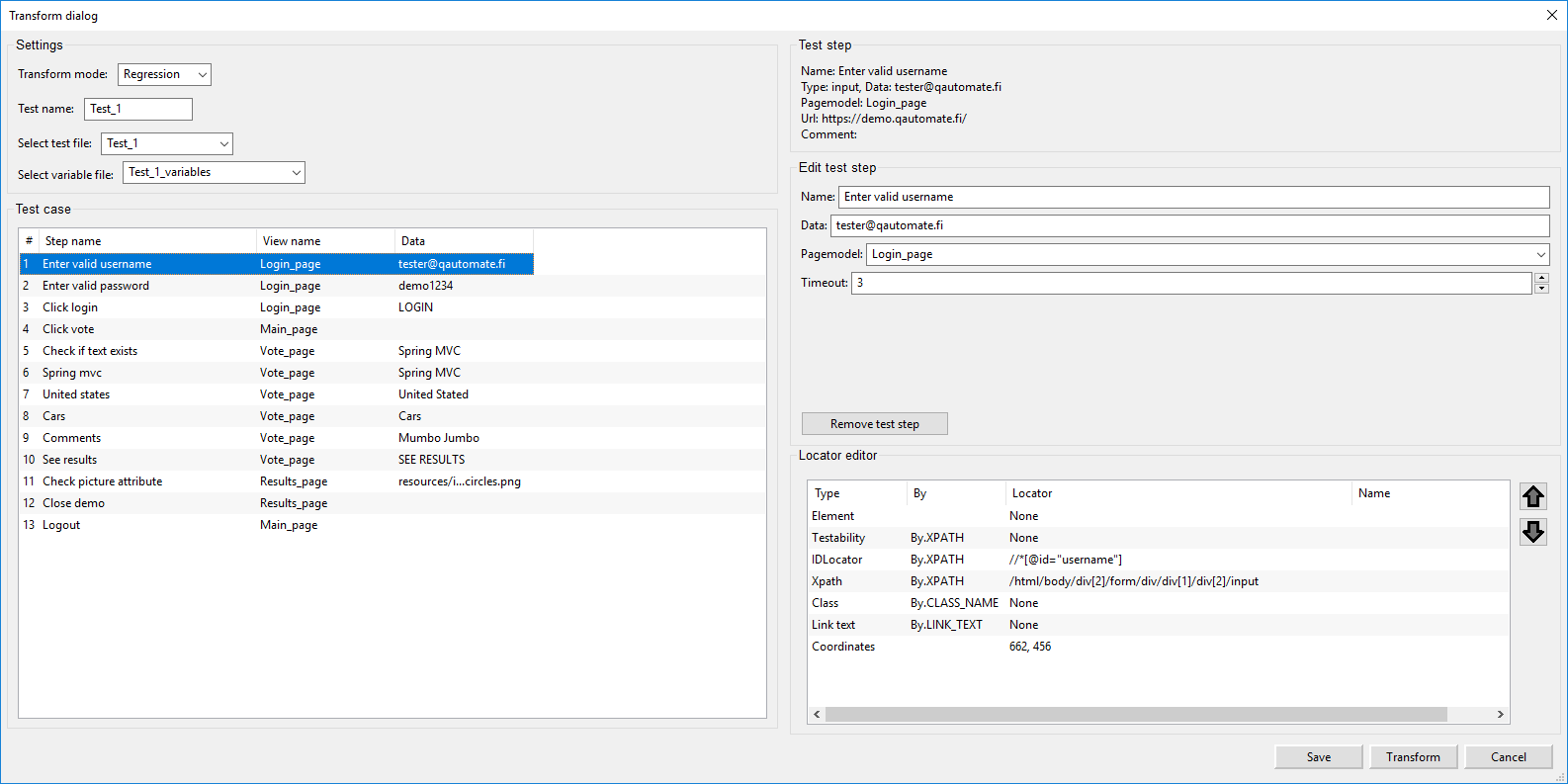
| Select test file | Select what file is the destination for the newly imported script. By default, if it doesn’t exist, a new file is created, but it is also possible to add it to an existing one. |
| Select variable file | Same as above, but for variables. A new variable file is created if does not yet exist. |
| Test case | Shows the list of steps that will be created. Clicking on each of the lines allows changing the parameters on the right side of the screen. It is possible to change the name, data, the pagemodel file where it will be created and also the timeout value that RobotFramework will wait before exiting. |
| Remove test step | This button removes the selected test step before it is transformed |
5.2.1 Transform modes
QAutoRobot allows transforming a flow file into three different modes.
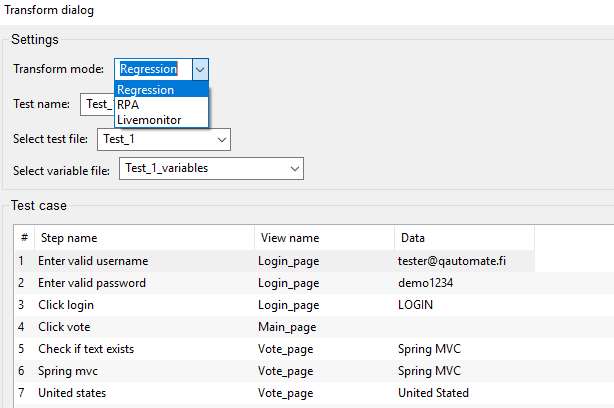
| Regression | Usual Robot Framework test case |
| RPA | Instead of test cases, this mode creates tasks. Used for Robotic Process Automation. Only avalailable with Robot Framework version 3.1 and newer |
| Livemonitor |
5.2 Action word wizard
This dialog provides a way to expand the functionality of the test cases by creating new action words based on already existing methods and keywords. It is possible to select different methods, from different page models, combine them into a new keyword and then add it to the .robot file.
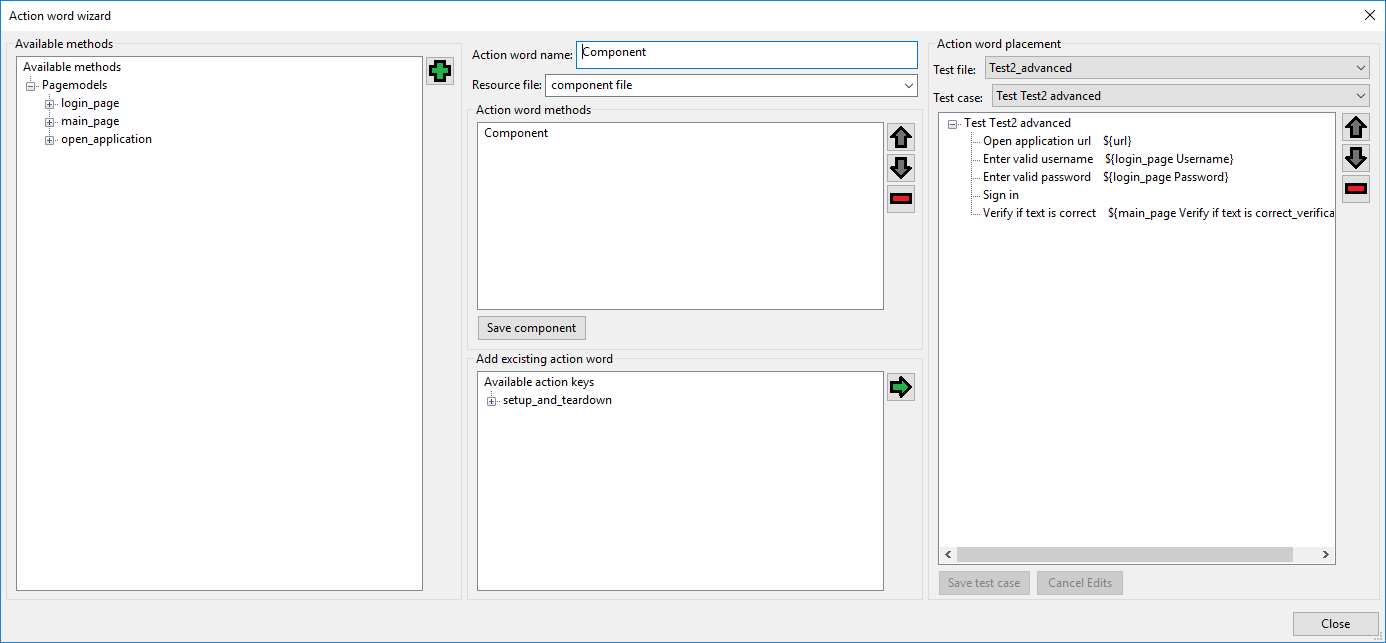
5.2.1 How to create a action word with the wizard
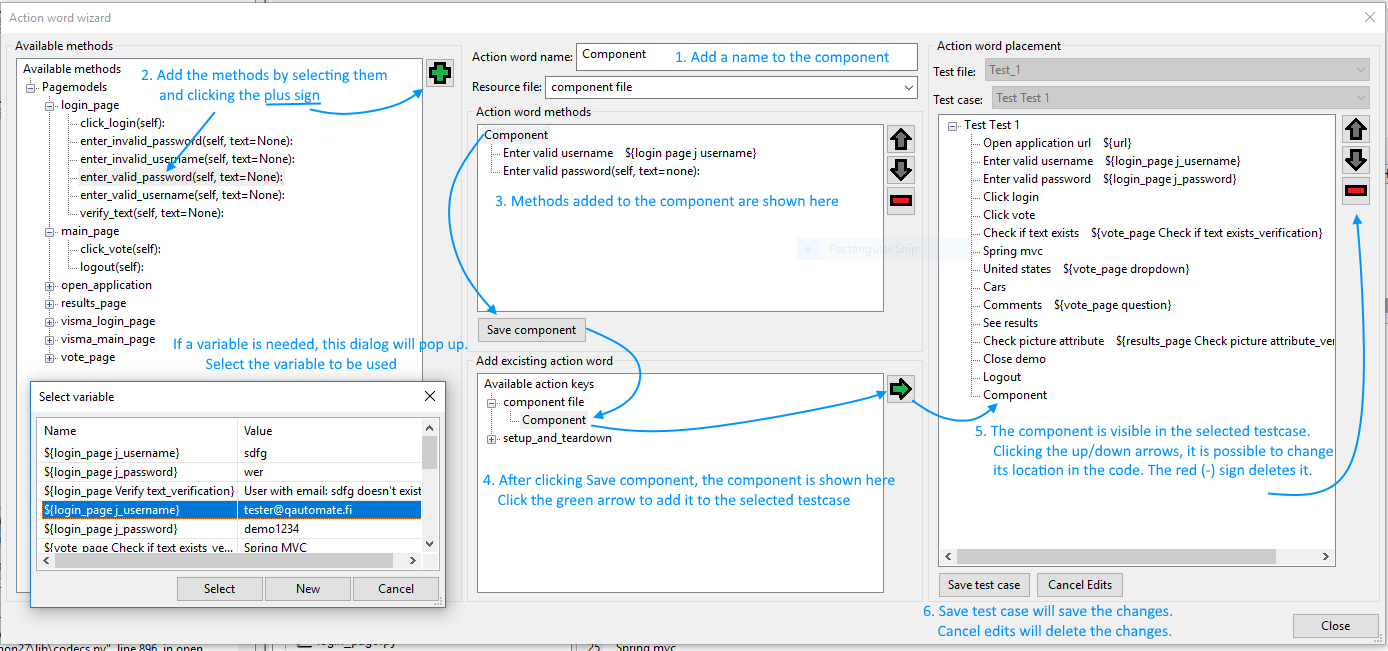
- Define a name for the component you are adding in Action word name. Also select where the component is going to be defined in Resource file. It is also possible to change the test file where the component is going to be added by selecting the name from the Test File and Test Case dropdown menus.
- From the list in Available methods, select the action you want to add. Click on the green plus sign to add it. You can only select and add one action at a time, but you can repeat the process as many times as you wish
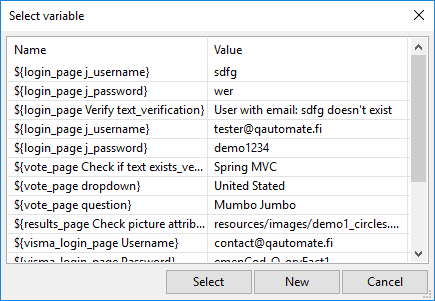
- If the action requires a variable, you can select which one to add from the Select variable dialog. In here it is also possible to crate a new variable if needed.
- The action words you added are shown in the Action word methods under the component name added earlier. It is also possible to move the action word up or down in the list by clicking on the grey arrows next to the list box. If an action word is not needed, it can be deleted by selecting it and clicking on the red minus button
- When the component is created, click on Save component to add it to the list of Available action keys. It is also saved to the Resource file selected in step 1. Clicking on the green arrow next to the list will add the currently selected component to the test case open.
- The component is added at the bottom of the test case file, but it is possible to move it up/down in the code by clicking the grey arrows next to the test case code. If the component is not needed, clicking the red (-) will remove it.
- Click on Save test case to save the changes or Cancel edits discard them. If the changes were saved, closing the wizard will update the testcase in QAutoRobot’s editor.
5.3 Insert method
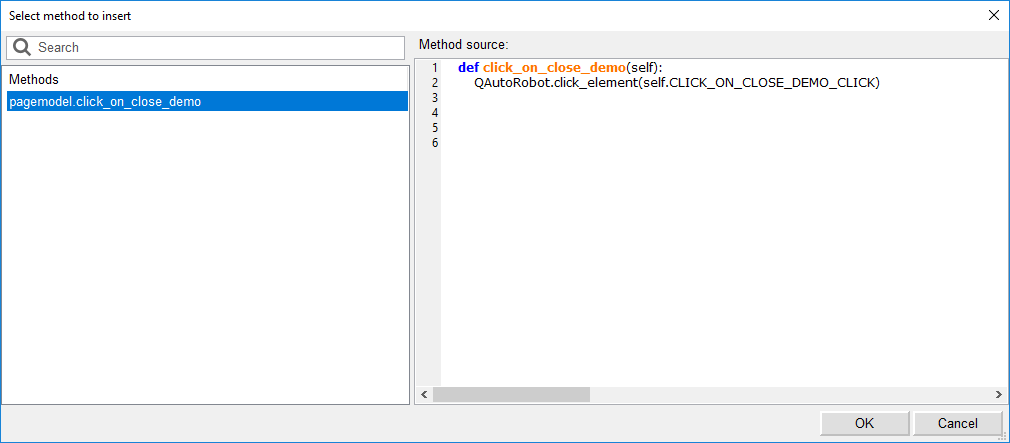
With this option, it is possible to add existing Python methods to the currently selected testcase. They will be automatically added in the form of a keyword. Clicking the Insert method button opens the dialog below. In there you can select the method to add, if there are multiple ones in the project. On the right side, under Method source, it is possible to edit the method and change its content. Once the changes are done, click OK to add the method to the .robot file
4.2.2 Test creator
Test creator allows user to transform test flow json file to robot test flow automatically. Select json or encrypted json file by clicking Select test flow file button and start transforming from the Transform button.
4.3.1 Page Modelling
To model web page, user needs to navigate to the desired web page
- With browser window which opened with QAutorobot framework or
- Copying www link to framework address bar and clicking “Go”
Give a logical name for the page model.
Note
QAutorobot model graph is generated based on page model structure. See below.
Example of Login.py
1 2 3 4 5 6 7 8 9 10 11 12 13 14 15 16 17 18 19 20 21 22 23 24 25 26 27 28 29 30 31 32 33 34 35 36 | # -*- coding: utf-8 -*-
import QAutoRobot
from QAutoLibrary.QAutoElement import QAutoElement
from selenium.webdriver.common.by import By
from time import sleep
class Login():
# Pagemodel timestamp: 20181018142502
# Pagemodel url: https://demo.qautomate.fi/
# Pagemodel screen resolution: (1920, 1080)
INPUT_USERNAME_INPUT = QAutoElement((By.XPATH, u'//*[@id="username"]'), coordinates=(822, 498), size=(296, 47))
USERNAME_INPUT = QAutoElement((By.XPATH, u'//*[@id="ctl00_ContentPlaceHolder1_Login1_Username"]'), coordinates=(982, 379), size=(214, 22))
PASSWORD_INPUT = QAutoElement((By.XPATH, u'//*[@id="ctl00_ContentPlaceHolder1_Login1_Password"]'), coordinates=(982, 408), size=(212, 20))
INPUT_PASS_INPUT = QAutoElement((By.XPATH, u'//*[@id="password"]'), coordinates=(822, 558), size=(296, 47))
SIGN_IN_CLICK = QAutoElement((By.XPATH, u'//*[@id="ctl00_ContentPlaceHolder1_Login1_LoginButton"]'), coordinates=(1132, 457), size=(63, 23))
def __init__(self):
"""
Pagemodel initialization
"""
pass
def input_username(self, text=None):
QAutoRobot.input_text(self.INPUT_USERNAME_INPUT, text)
def password(self, text=None):
QAutoRobot.input_text(self.PASSWORD_INPUT, text)
def sign_in(self):
QAutoRobot.click_element(self.SIGN_IN_CLICK)
|
Handling pages with frames * This is not working at the moment * If web pages contain frames, QAutorobot framework detects it before page modeling.
- Framework alerts the user about frames on web pages
- The user has to choose what to model
Check skip frames option to ignore frames in page modeling
Select frame from dropdown menu to model frame content elements
- Select frame content - Switches frame content area
- Select frame url - Handles frame as normal web page url
- Click Create page model, select Full page model and give name for page model.
- After frame is modeled, click Return-button to continue page modeling.
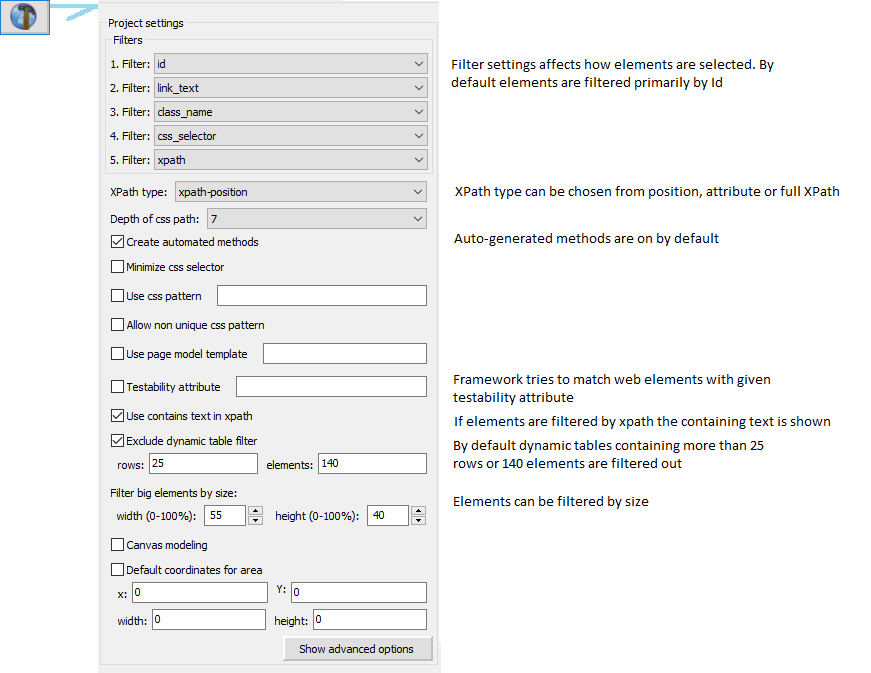
4.5.2 Page model settings filter
4.5.3 Dynamic objects
Dynamic tables and lists
4.5.3.1 Dynamic locators
Dynamic objects allow user to add elements on already modelled pages, e.g. element(s) not found in modelling progress (process??????).
Start creating dynamic objects by right-clicking an object in generator view and select Generate dynamic object or by clicking Create dynamic locator-button
Get text, Get value and Attributes field show info about currently selected element.
There are two ways to add new dynamic object
- Customize own xpath locator
- Search elements by tags and select desired element from dropdown list
Test custom locator before adding it.
Create custom locator xpath finding element with specific details:
Example with specific element:
1 | self.find_element((By.ID, "my_element_name_id"))
|
Example with dynamic element locator:
1 2 3 | row_variable = 2
custom_locator = "//tr[row_varible]/div[3]"
self.find_element((By.XPATH, custom_locator)
|
Add click_element to custom locator example:
1 | self.click_element(self.find_element((By.ID, "my_element_name_id")))
|
4.5.3.2 Dynamic tables and lists
Dynamic tables and lists should be handled with dynamic methods which works with dynamic content. Static locators should not be used.
QAutorobot has a functionality which analyzes structures and makes dynamic methods. This will make it easier to handle tables and lists in tests.
Right-click on an element while in Generator preview window and select option “Generate dynamic search function”.
After clicking you can set search options:
Dynamic search function examples:
Example of clicking and finding table element with text or text contains:
1 | coming
|
Example of getting element text from certain row:
1 2 3 4 5 6 7 8 9 10 11 12 13 14 15 16 | def get_text_from_table_tableTest_1(self, text_contains=u'Row 3'):
# Element search
locator = self.TABLETEST
value = text_contains
row = u'TBODY/TR'
cell = u'TD'
element_info = self.get_table_column_and_row_by_text_contains(locator, value, row, cell)
# Searched element info
row_number = element_info[2]
column_number = element_info[3]-1
row_element = element_info[0]
element = row_element.find_elements(By.XPATH, cell)[int(column_number)-1]
# Action for the element
return element.text
|
Example of find list row and clicking arrow element:
1 2 3 4 5 6 7 8 9 10 11 12 13 14 15 | def click_element_from_list_1(self, text=u'11:33'):
# Element search
locator = self.SEARCH_TABLE
value = text
row = u'LI'
cell = u'DIV'
element_info = self.get_list_row_by_text_contains(locator, value, row, cell)
# Searched element info
row_number = element_info[1]
row_element = element_info[0]
element = row_element.find_elements(By.CLASS_NAME, u'vr-icon-arrow_right')[0]
# Action for the element
self.click_element(element)
|