QAutorobot Installation
2 Installation
2.1 Supported platforms and integrations
| Operating Systems | Supported | Not supported |
| Windows |  |
|
| Linux | |
|
| Macintosh |  |
|
| Vagrant | |
|
| Cloud servers | |
|
| Browser - Desktop | ||
| All browsers | As Selenium webdriver |
|
| Browser - Mobile | ||
| Android Chrome | |
|
| Mobile browser | with Appium |
|
| Integrations with CI environments | ||
| Test results html reports | |
|
| Test results Junit xml with CI | with Jenkins plugin |
|
| Test link | with Jenkins plugin |
|
| Integrations with libraries | ||
| Robot framework libraries | |
|
| Python libraries | |
|
2.2 QAutorobot Installation instructions
2.2.1 Installing preconditions
Before installing make sure to have
- Administrator rights
- Rights to write on “C:\users\*username*\qautomate” - folder
- Python 3.7 is installed and it is added to the Path.
Python can also be installed with optional_install_python37.bat that comes with the installer package.
https://www.python.org/downloads/
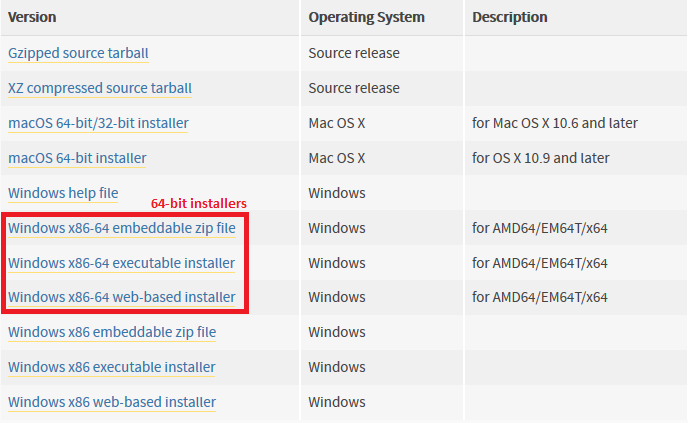
Download Python by selecting suitable version (3.7+) from releases list and scrolling down to files. Make sure to download a 64-bit version! Recommended version is Python 3.7.x 64-bit.
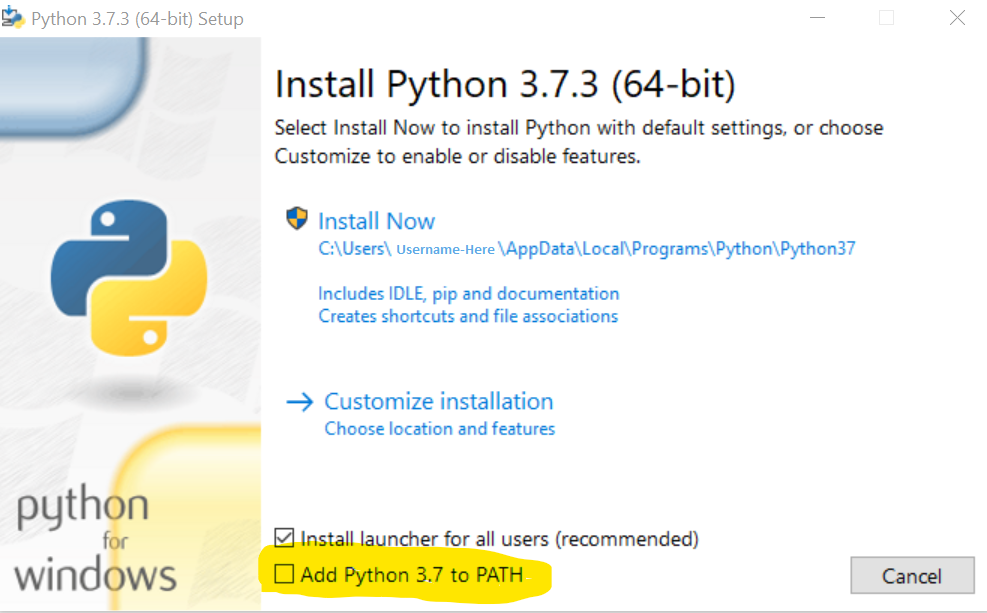
At the start of installation, check option Add Python 3.7 to PATH:
Note
Python 2 only: During installation make sure that Python is set to be installed on local hard drive (not set as default).
Note
Python 2.7.x is in maintanance mode.
If Python is already installed make sure .py files are associated with Python. You can do this in Settings -> Apps -> Default Apps -> Choose default apps by file type or by running the following command in the terminal:
1 | assoc .py=Python.file #works on Windows
|
2.2.2 Install with Python local environment
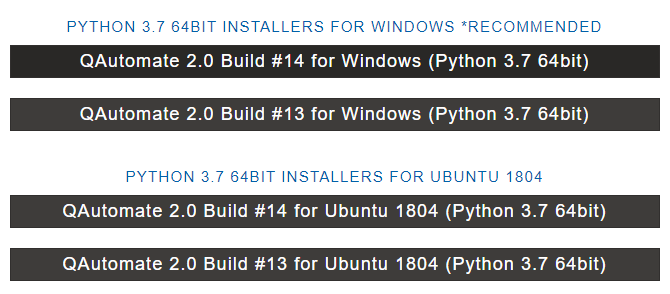
Go to downloads page https://customer.qautomate.fi/downloads.html
Note
Select correct file based on your Python 3 version (32-bit/64-bit).
Choose a correct download of QAutomate Tools installer for your operating system. 64-bit recommended
Unzip the QAutomate.zip file you downloaded and open Command Prompt (cmd) in that folder.
In Command Prompt, navigate to the folder (shown as “INSTALL_FOLDER” in examples below) where you have extracted QAutomate.zip.
Depending on your operating system, follow one of the following steps;
- Windows: Execute install_qautomate.bat file so that required Python components are installed.
1
c:\INSTALL_FOLDER\install_qautomate.bat- Linux: Execute install_qautomate.sh file so that required Python components are installed.
1
$ ./INSTALL_FOLDER/install_qautomate.sh
- The browser drivers are not included in the installation. They can either be installed manually or via the Update Webdrivers dialog found in StarterUI -> Help menu. Please read chapter 2.4 Updating web drivers for more information.
- Install at least Firefox browser for it is used for testing by default (Google Chrome and Internet Explorer are also supported)
2.2.3 Install with Python virtual environment
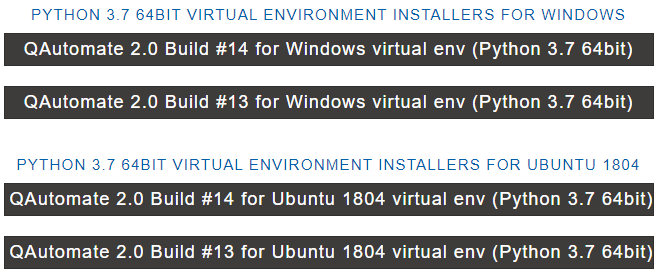
Go to downloads page https://customer.qautomate.fi/downloads.html
Choose a correct download of QAutomate Tools virtual environment installer for your operating system. 64-bit recommended
Unzip the QAutomate.zip file you downloaded and open Command Prompt (cmd) in that folder.
Depending on your operating system, follow one of the following steps;
- Windows: Execute install_qautomate.bat file so that required Python components are installed.
1
C:\INSTALL_FOLDER\install_qautomate.bat- Linux: Execute install_qautomate.sh file so that required Python components are installed.
1
$ ./INSTALL_FOLDER/install_qautomate.sh
Installation bat creates a python virtual environment in virtualenv folder where QAutoRobot’s Python components will be installed. It is located in the same folder as the installation bat.
2.2.4 After installation
Confirm environment variables and set if necessary;
Environment variables path:
- “C:\INSTALL_FOLDER\QAutomate\webframework\resources”
To verify installation;
- Run verify_installation.py located in “C:\Users\%username%\qautomate”
- Reboot computer
To uninstall QAutorobot;
- Use windows uninstall programs in Control Panel
Check list in case of installation problems
Python is not recognized
-> check “Successful Python installation” guide below
QAutorobot can not be started
No module named error
QAutorobot cannot find the needed Python modules;
-> check “Successful Python installation” guide and pip install below
Can not connect to license server
-> check network proxy and add QAutorobot settings file mentioned in 2.5.2 Launching errors
Successfull Python installation
- Check that Python is visible in Windows Add/Remove programs list
- Check that the Python installation folder is in the Path
- Check that Python can be found registry:
- e.g value C:\Python37\ in HKEY_LOCAL_MACHINE SOFTWARE\Wow6432Node\Python\PythonCore\3.7\InstallPath
- Check that pip install works running cmd: “C:\Python37\Scripts\pip list”
Note
Python installer option should be: Install Python for all users
2.3 Updating framework
There are two ways to update framework;
Update QAutorobot framework from Starter UI > Help > Update QAutorobot
This method works on both Windows and Linux.
Full framework update including all the modules
- Download the newest installer file
- Follow 2.2.2 Install with Python local environment guide to install newest version
2.4 Updating web drivers
Update webdrivers and selenium from Starter UI > Help > Update WebDrivers
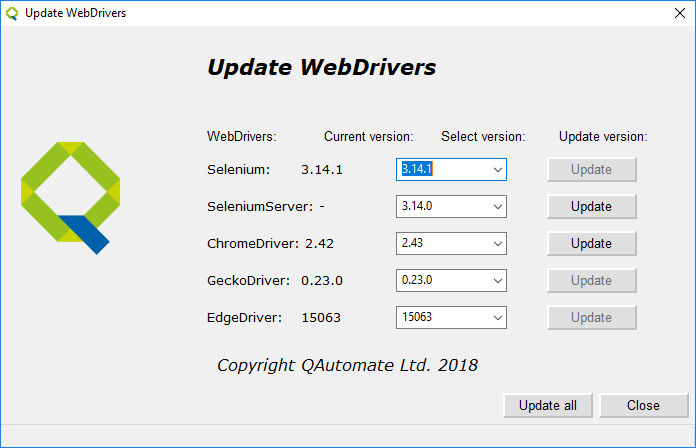
It is also possible to update the webdrivers via command prompt:
webdrivers_updater.py
-gd desired Geckodriver version, e.g. -gd 0.19.1
-cd desired Chromedriver version, e.g. -cd 2.33
-ed desired Edgedriver version, e.g. -ed 15063
-id desired IEdriver version, e.g. -id 3.7
2.5 Launching QAutoRobot
2.5.1 Launching QAutoRobot for the first time (entering license)
- Launch QAutorobot Starter UI by
- Double clicking the Desktop shortcut (QAutorobot.Ink)
- Or using the command prompt:
If you have set the environment variable:
- “C:\INSTALL_FOLDER\QAutomate\webframework\resources”
open terminal
navigate to the directory which is desired for saving all the project files
run command:
1
qautorobot.py
Otherwise:
open terminal
navigate to the directory where you unzipped QAutomate.zip
run command:
1
qautorobot.bat
- A license pop-up is shown. Add a valid email to register product
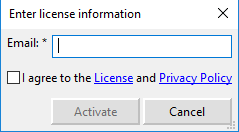
- After entering the license information, Starter UI is visible:
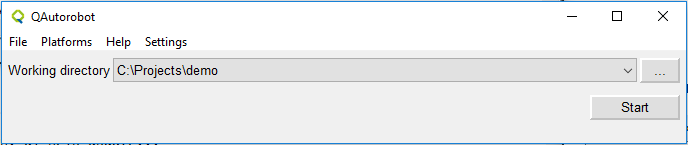
- Select a valid working directory and click on Start
Note
If framework fails to start because of missing web browser, update Selenium web driver following the instructions in 2.5.2 Launching errors
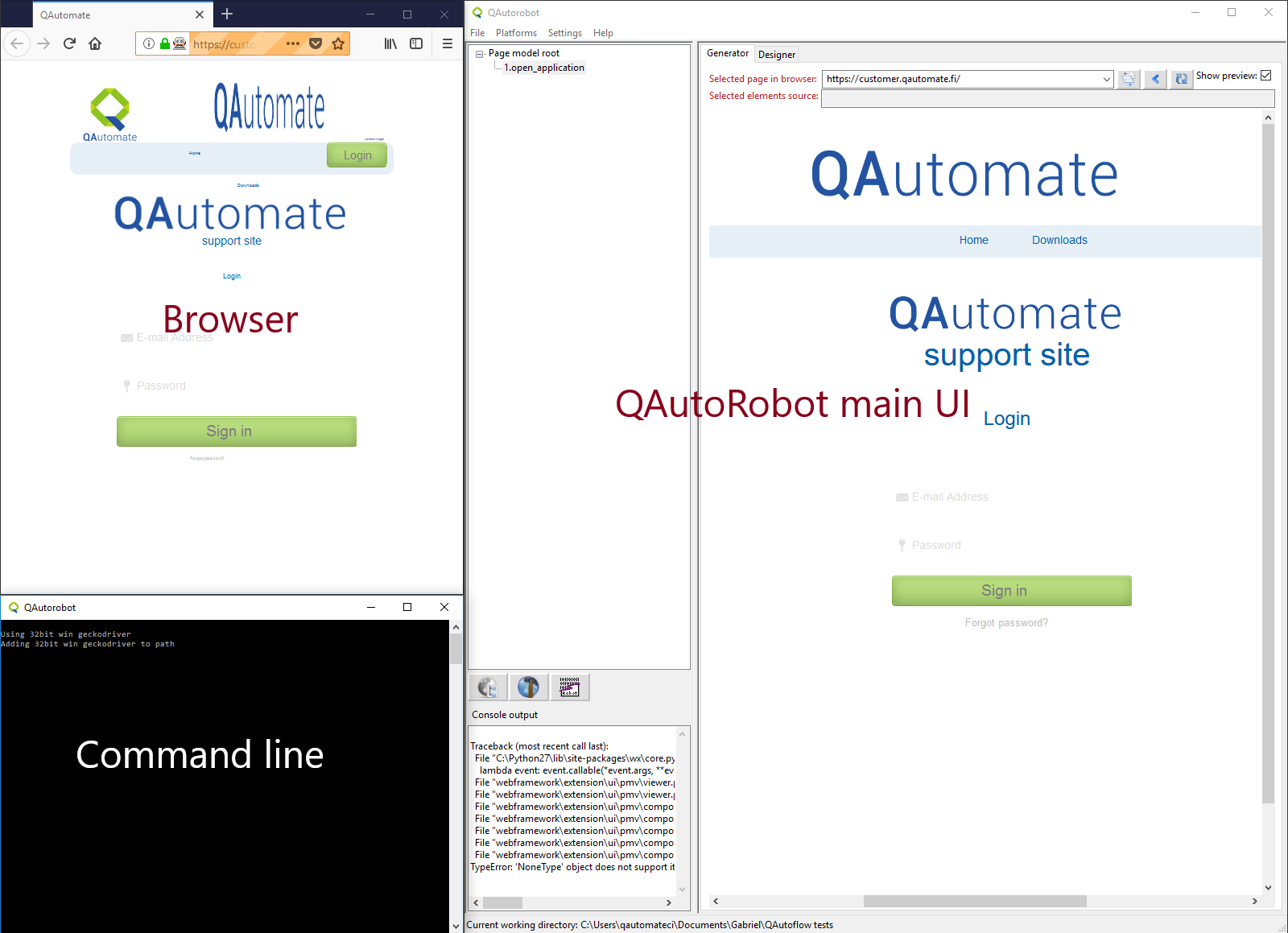
- QAutoRobot opens three separate windows:
- The application itself.
- An instance of your web browser, e.g. FireFox, used to inspect and import elements into QAutoRobot.
- A command prompt that shows the status of the application and errors, if they occur.
2.5.2 Launching errors
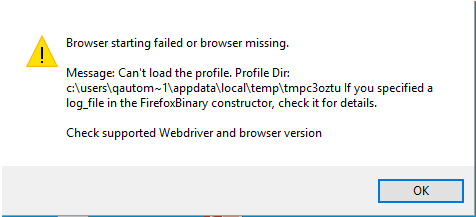
GeckoDriver
Since Selenium 3 does not have native implementation for a Gecko engine based Firefox browser, Geckodriver must be used in order to drive commands into the browser.
Geckodriver is an executable file that starts a server on your system. It is used as a proxy server between a W3C WebDriver-compatible client(your system) and a Gecko engine based browser. It translates commands into the Marionette automation protocol.
Marionette is a remote protocol of a Gecko/Firefox. It is a tool for remote controlling Gecko based platforms.
Not all Geckodriver and browser versions are compatible with each other.
Update Selenium webdriver
After updating Mozilla Firefox or Google Chrome you may have to update the Selenium webdriver as well.
It can be updated via the webdriver update dialog as described in 2.4 Updating web drivers or, if you are on windows, execute the following command in the terminal:
1 | C:\Python37\Scripts>pip install --upgrade selenium
|
Install specific Selenium version
e.g. Selenium version 3.5.0
1 | C:\Python37\scripts>pip install --upgrade selenium==3.5.0
|
Note
It is also possible to downgrade Selenium with this method
Install different GeckoDriver version
Different GeckoDriver versions can be downloaded using the webdriver update dialog as mentioned in 2.4 Updating web drivers or from https://github.com/mozilla/geckodriver/releases
Proxy error
If network problems occur while launching the tool using a team license, please try defining a proxy and port in “C:\Users\*username*\qautorobot\global_settings.xml”
By default, the proxy settings are empty and therefore ignored by QAutoRobot, but it is possible to setup a proxy server connection by updating the values below:
1 2 3 4 5 6 7 8 9 10 11 12 | <settings>
<static_pm_generation value="False"/>
<show_preview_img value="True"/>
<mainwindow_width value="1616"/>
<mainwindow_height value="1176"/>
<proxy value=""/>
<perf_proxy_port value=""/>
<upstream_proxy_address value=""/>
<upstream_proxy_port value=""/>
<proxy_type value="1"/>
<upstream_no_proxy_list value=""/>
</settings>
|
2.6 Working directory
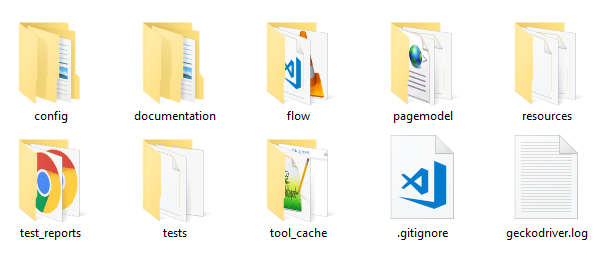
Description of the most important folders in the Working directory
| config | Configuration files for the project. |
| flow | Flows/testcases recorded using QAutoFlow. Encoded .json files are here. |
| pagemodel | Screenshots and autogenerated methods (Python) for page models. |
| resources | Variables, Setup and Teardown .robot files. Created after transforming .json files from the flow folder. |
| test_reports | Test reports generated by RobotFramework when the testcases are run |
| tests | Test cases in .robot format. Created after transforming .json files from the flow folder |