QAutorobot User Interface
3 QAutoRobot User Interface
3.1 Introduction
QAutorobot is a powerful and easy to use tool that allows creating test automation testcases. Together with QAutoFLow it can also be used to create Robotic Process Automation (RPA) robots to automate repetitive tasks. Below are the two main work areas in QAutoRobot.
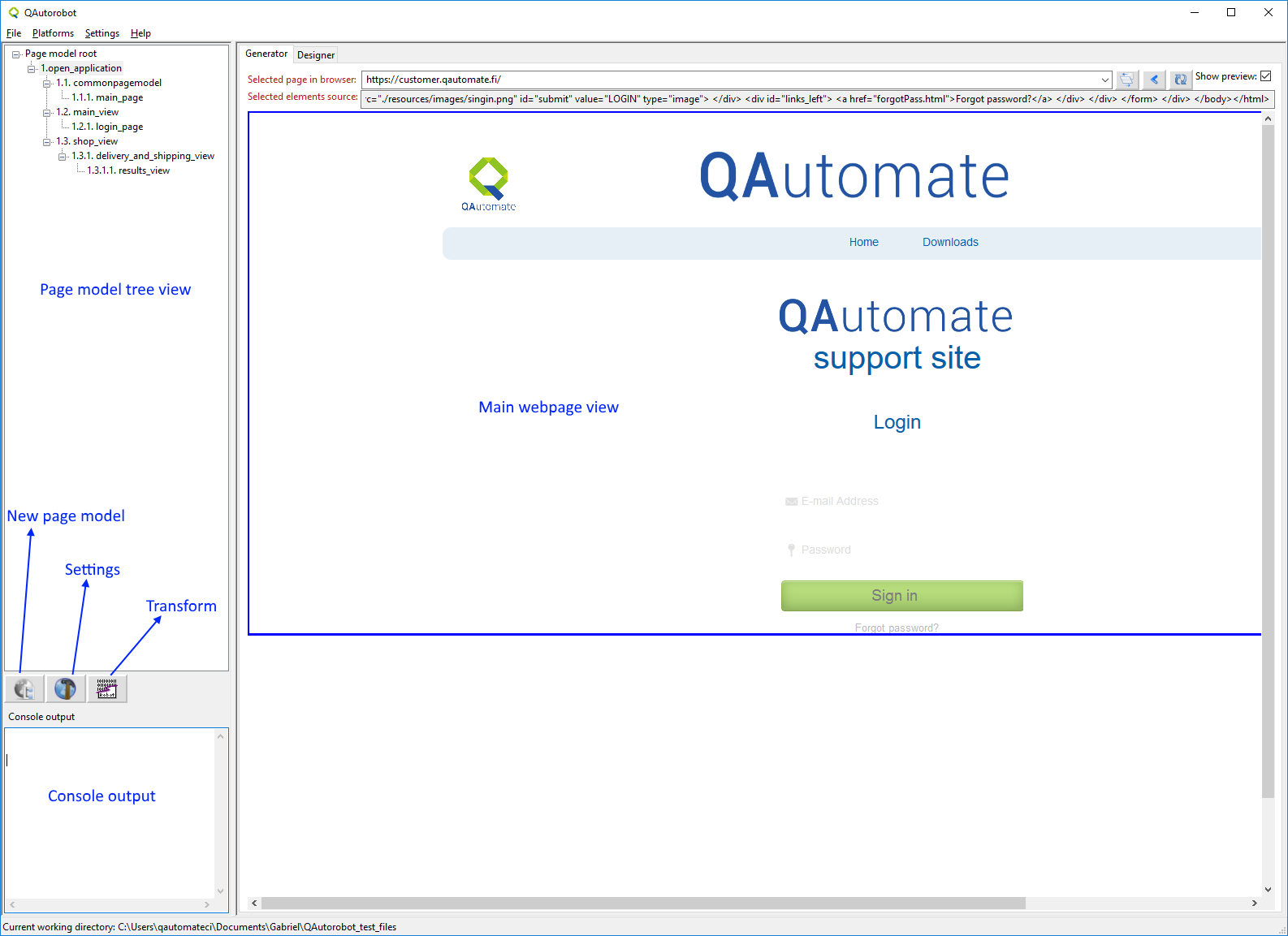
The image above shows the main view with the Generator tab visible. In this view it is possible to capture elements from the web page that can be stored in variables and later used in other components.

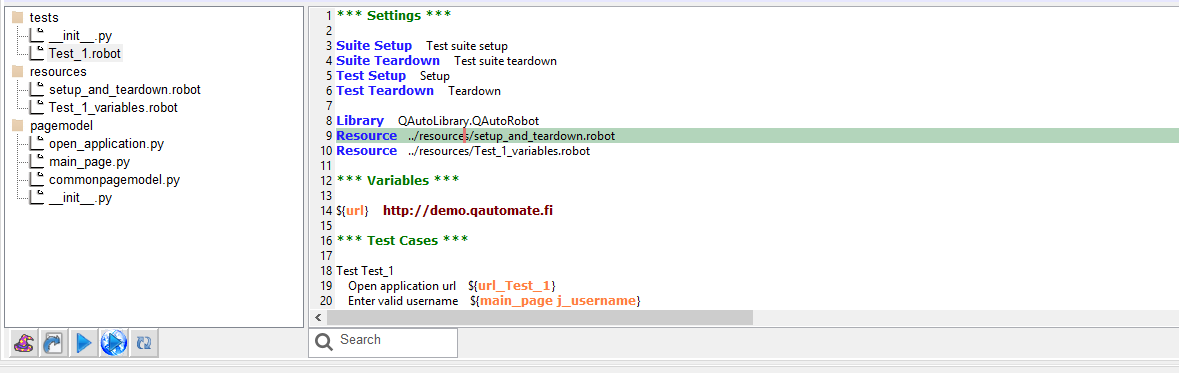
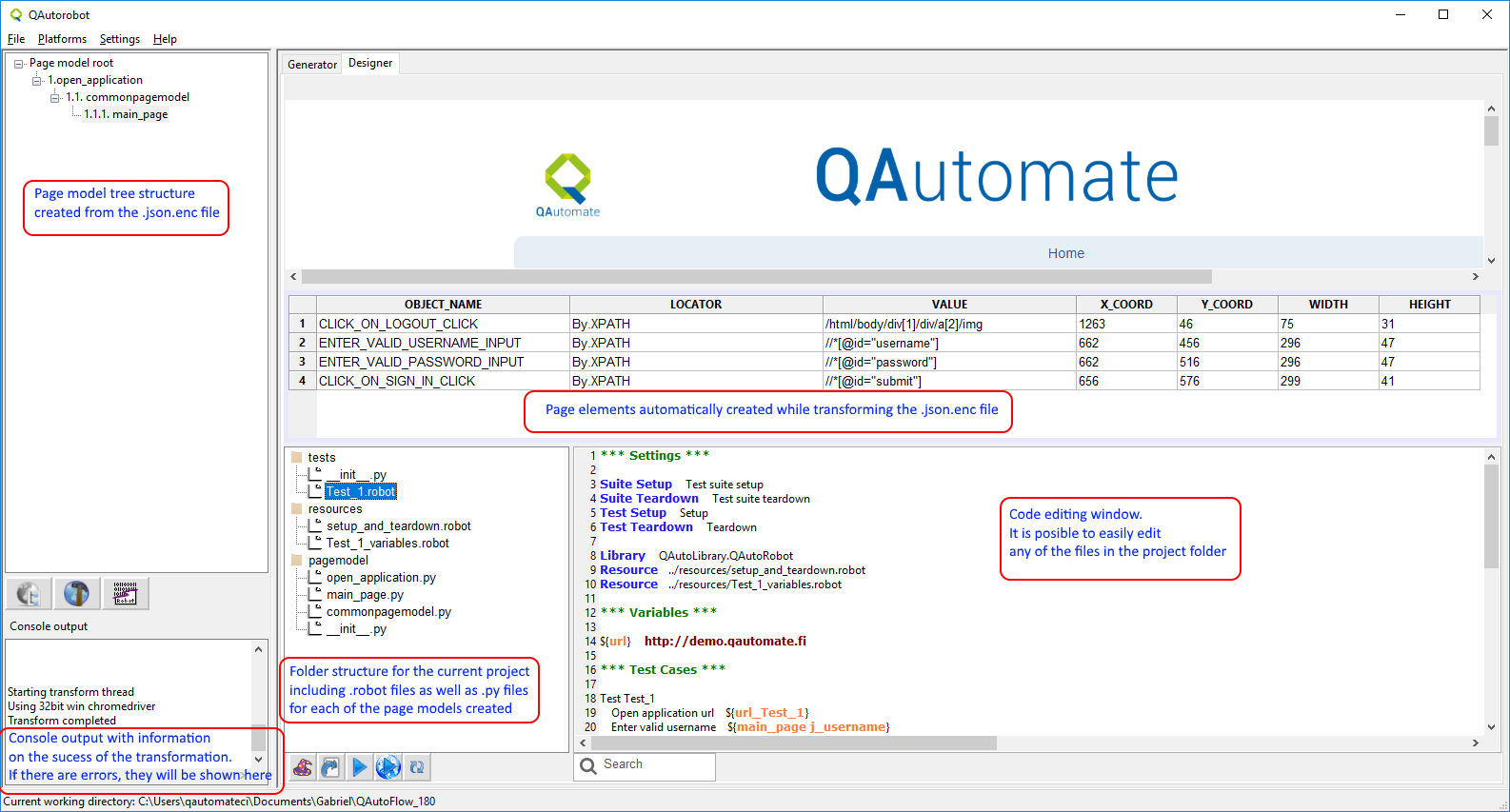
The image above shows the main UI view with the Designer tab visible. In here is is possible to edit the Robot Framework files and extend these with custom made Python libraries. QAutoRobot allows for easy editing of the files as well as adding additional components to the robot files.
3.2 First Robot Framework script
In here we will show a small example of how easy it is to create, transform and modify a Robot Framework with QAutoRobot. In order to follow this example, both QAutoFlow and QAutoRobot must be installed.
3.2.1 Create a flow with QAutoFLow
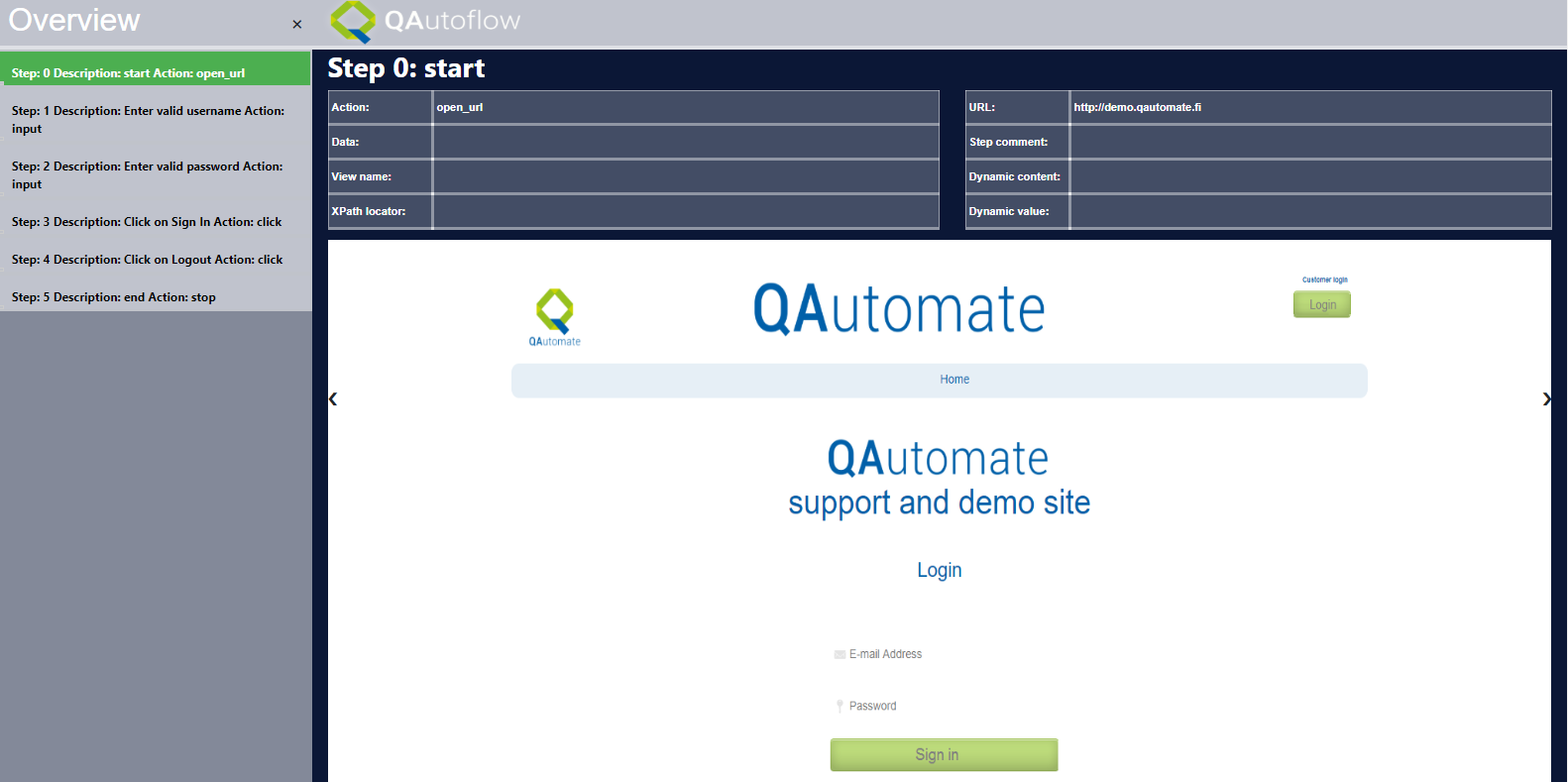
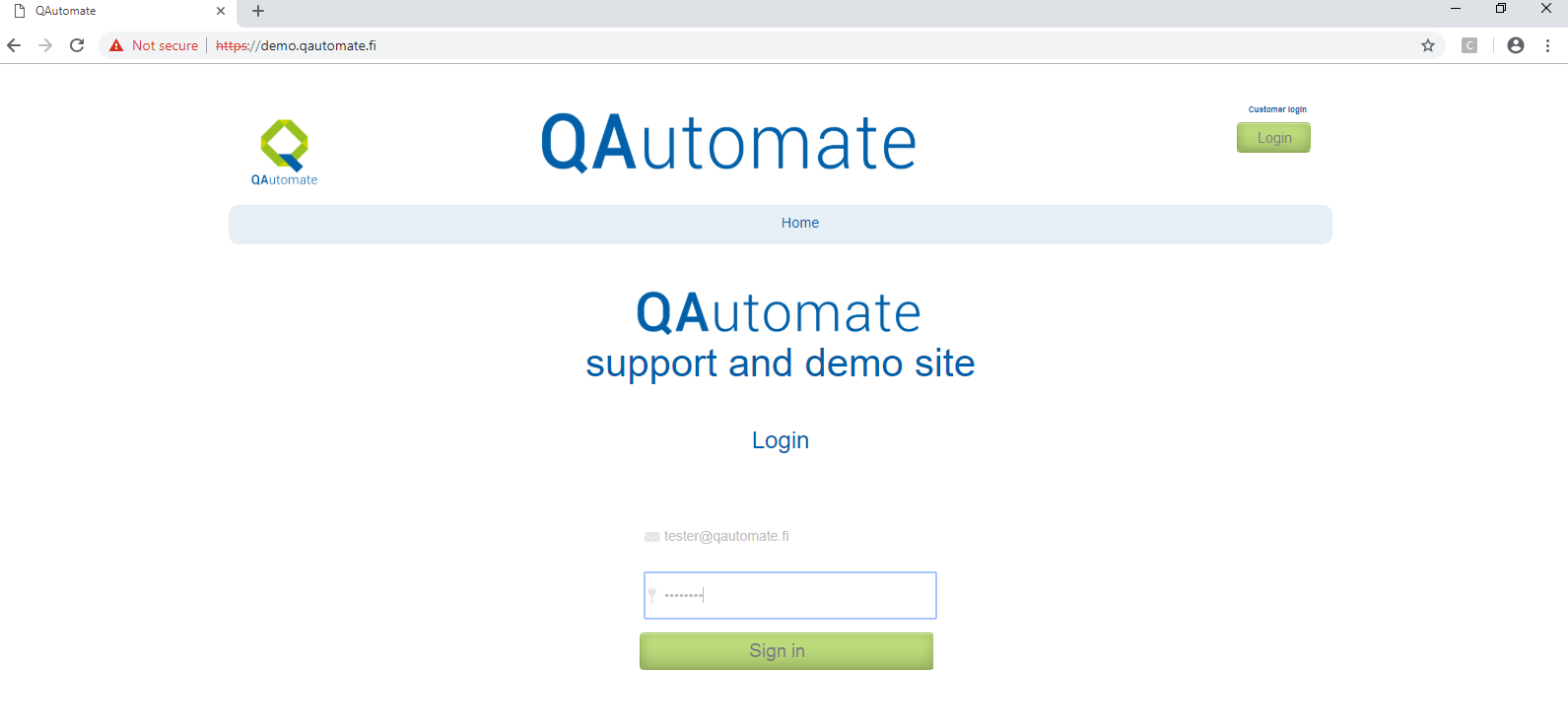
The QAutoFlow user guide can be found here (add reference). Create a folder for your project anywhere on your computer. Launch QAutoFlow and create a test flow on that folder following the instructions in the guide. When the flow is created and saved, the list of steps is shown in your browser and it should look similar to the one below.
3.2.1 Open the flow in QAutoRobot
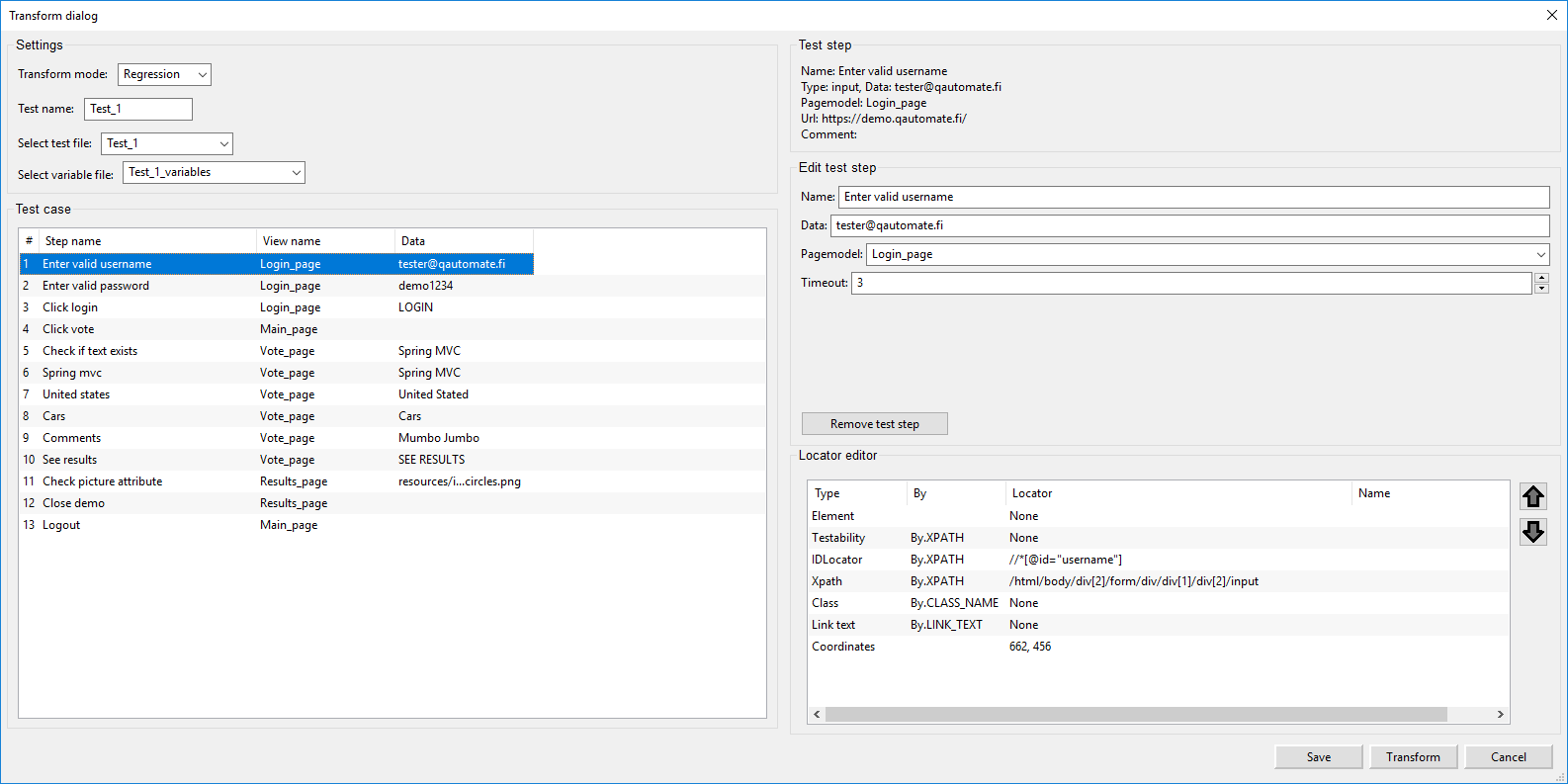
QAutoFlow creates a folder called “flow” inside the project folder. In that folder, there are two files: the html visual representation of the flow mentioned earlier and a .json.enc file. This last file is the important one for this step. It includes the steps created in QAutoFlow and it is the file that allows QAutoRobot to create the Robot Framework script. In QAutoRobot, click on the “Transform” icon, browse to the project folder -> flow created earlier and select the .json.enc file. You can make changes to what is transformed, as seen below, but for this example we will just leave everything as is and click on the Transform button.
QAutoRobot will then follow the steps on that file and transform them into a .robot file. You can see the process as it happens.
The the final result is seen below. Based on the .json file, QAutoRobot creates not only the .robot file, but also the necessary variables file, the setup and teardown file and the correct page model Python files.
3.2.2 Run and modify the .robot file
As seen above, QAutoRobot creates a RobotFramework file that can be executed, either in QAutoRobot or using RobotFramework from the command line. To execute the file in QAutoRobot, just select it from the folder tree view and click on the Run button.
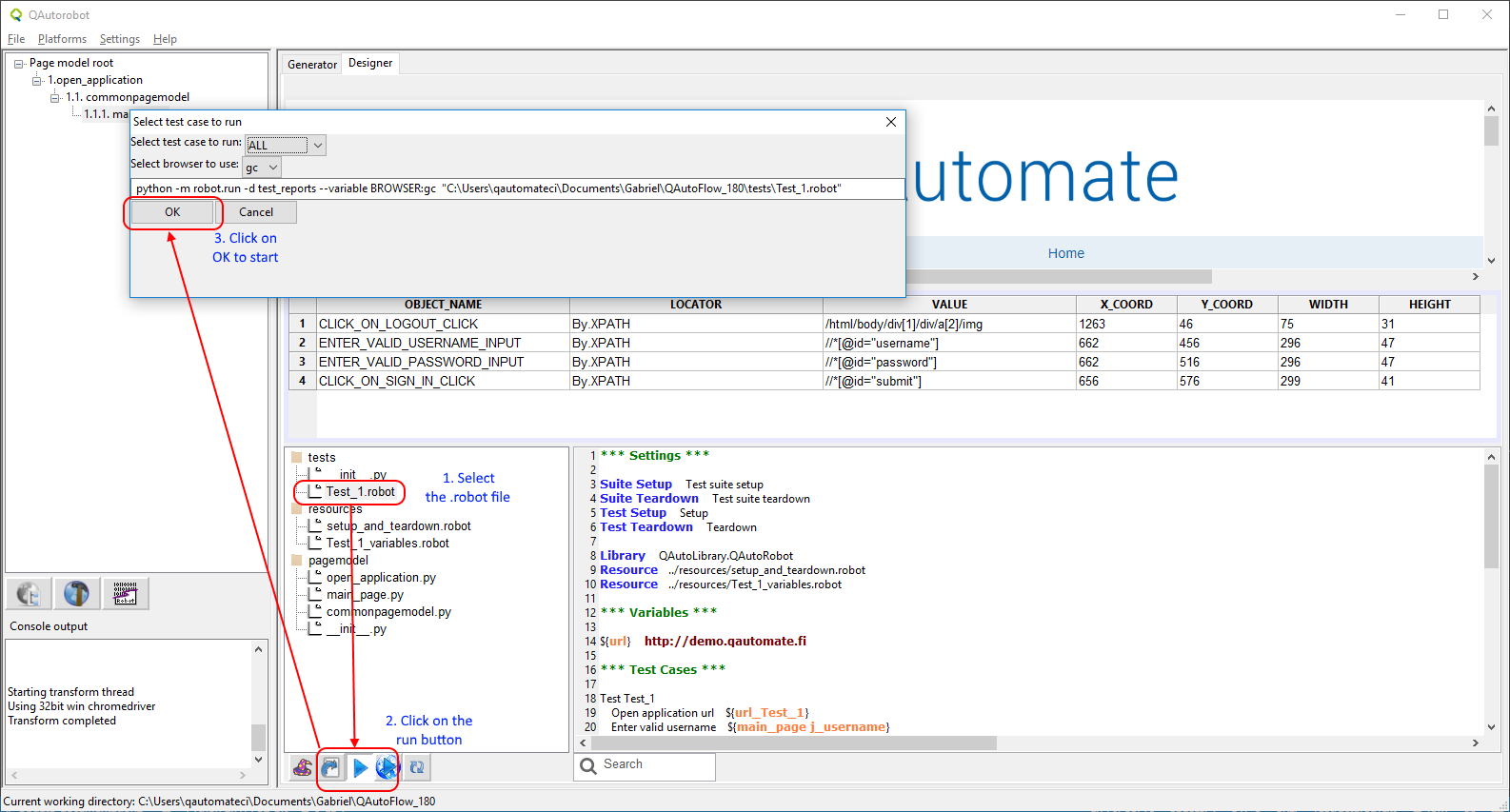
To modify the file, or any of the other files inside the project, select the file from the folder tree view and then click anywhere on the text shown on the right side. The file can now be edited. To save it, simply either run the file or select a different file, the changes are saved automatically.