QAutoRobot Components
4 QAutoRobot components
QAutoRobot framework is built around the Page model approach, commonly known as Page object pattern. In this approach, the website is divided into logical parts or views. It can be a separate page or even a separate section of the page for example a header, footer or a content area. Each of these pages or sections of the page are modelled to a specific class called page model which contains the web-elements.
Benefits:
- website is modelled into logical pieces with clear interaction between them
- web elements are defined in one place -> easier maintenance if changes are done
- code reuse -> easier maintenance if changes are done
- functions have logical names -> providing shorter and more readable tests
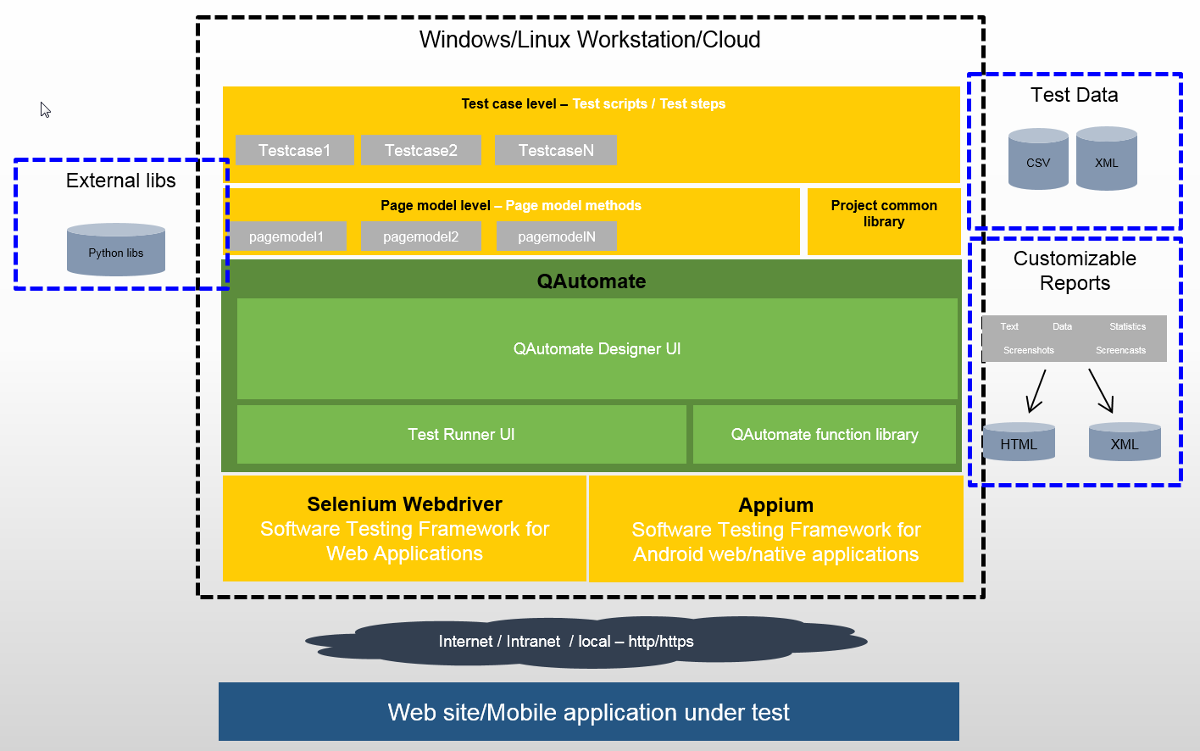
4.1 Generator View
The first page visible when opening QAutoRobot is called the Generator. In here it is possible to navigate to a web page and extract certain elements from it, for example: object names, element locators, among other things. It is also possible to see the Pagemodel tree where the user can update, import or delete the different page models created in the project.
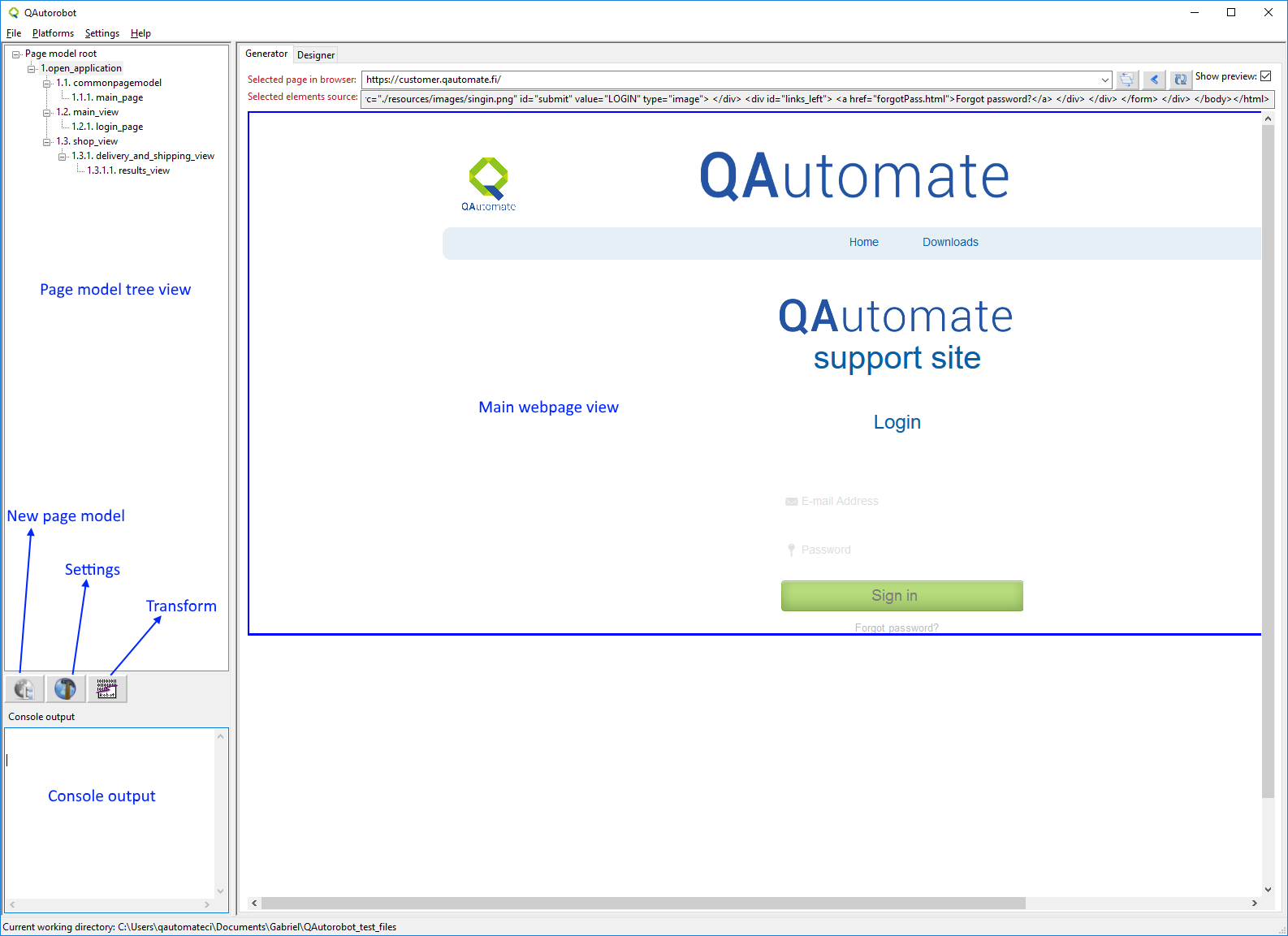
| Page model tree view | Visualization of the different page models available in the current project |
| Console output | Output from console |
| Generator tab | Open a web page and extract elements and locators from it by right clicking on them. These can be used in page model files. |
| Selected page in browser | Address of the current page being displayed. |
| Selected elements source | Displays information about different element in the page (images, links, etc). Clicking on different elements updates the value shown here |
4.1.1 Dynamic object locator
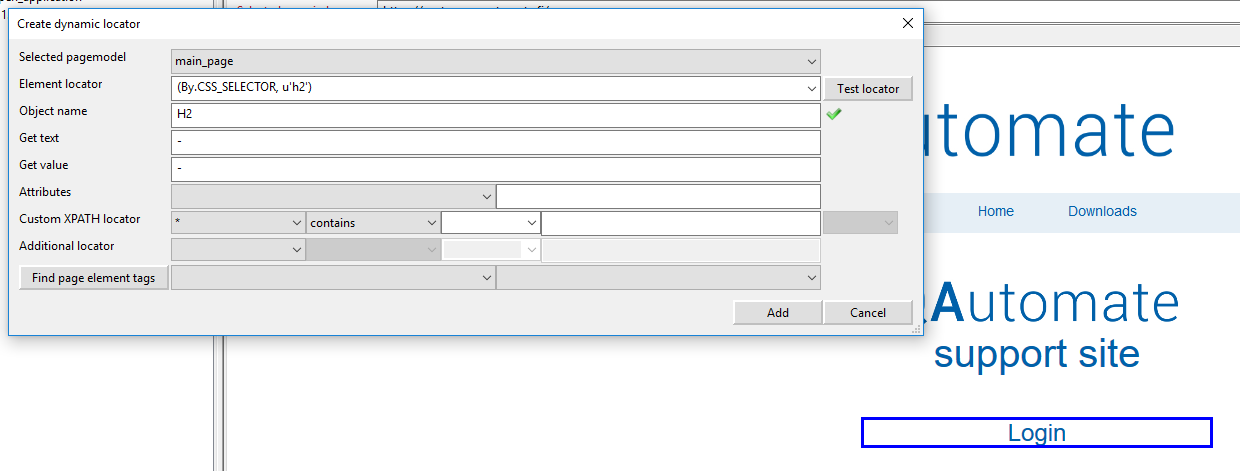
QAutoRobot allows creating dynamic object locators for elements on a web page. Depending on the page, there are different methods that can be used, for example CSS Locator of XPATH. To open the dynamic object locator, right click on the desired object and click on “Generate dynamic object”
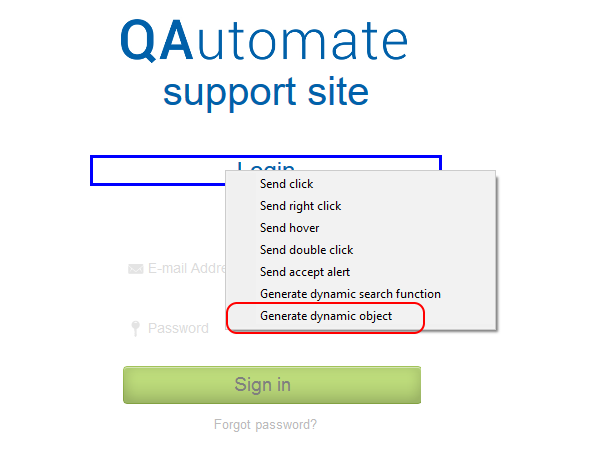
This opens the Create dynamic locator window. In there, it is possible to create and test various types of locators for the page elements and add them to the selected pagemodel.
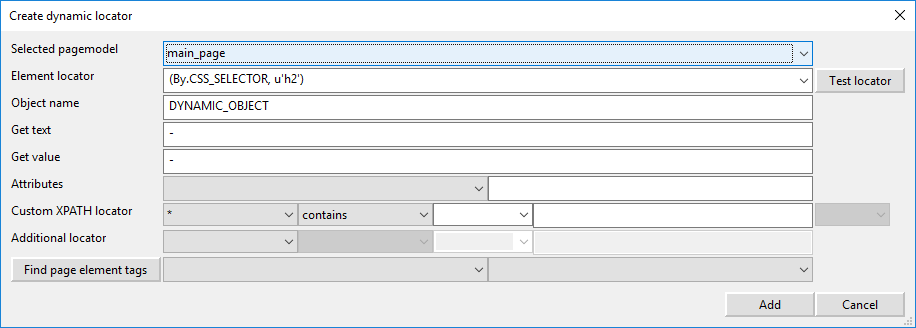
| Selected pagemodel | Select the pagemodel where the locator will be added |
| Element locator | Select the method used to locate the element on the page. For example CSS Selector, XPath, ID, etc. This is automatically updated depending on what is supported by the webpage |
| Object name | Define a name for the object |
| Test locator | This button tests if the locator created works correctly by trying to find the element in the page. |
To verify if the locator works as expected, click on the Test locator button. QAutoRobot will try to find the element on the webpage and display a success message if it finds it. This way, the user can be sure that the locator works correctly.
4.2 Designer View
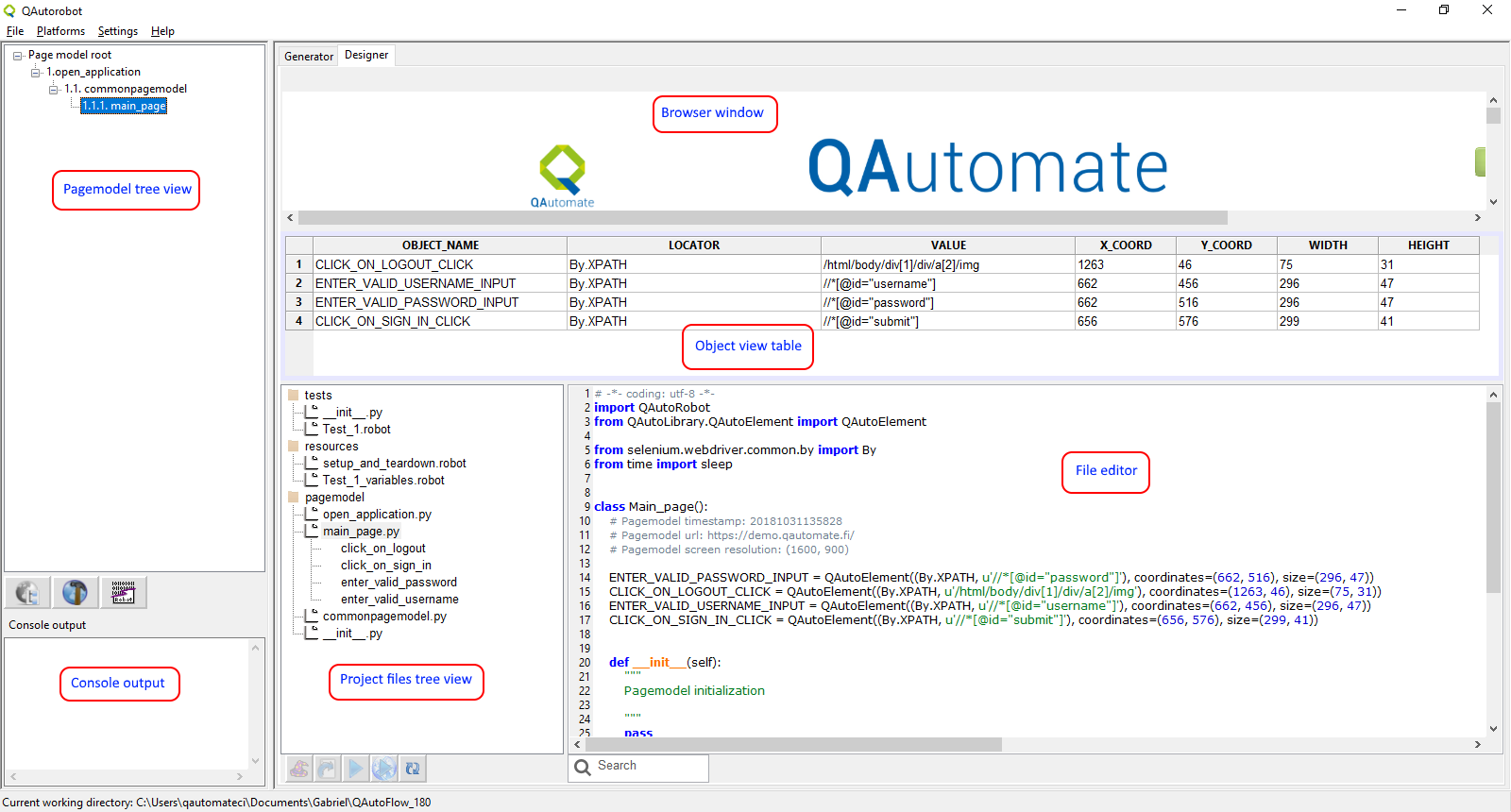
In the Designer page, it is possible to:
- Visualize, edit and delete all elements that are used in a pagemodel
- Create and edit methods for unknown elements
- Create and edit test cases and test settings
- Import, edit or delete pagemodels
4.2.1 Page model tree
The methods describing actions on a web page receive logical names in order to easily interact with those in the code. The main idea of this approach is to store web elements and functions in one single place found in the “Designer” tab. The user only needs to call the functions from a particular page model depending on the test scenario enabling easier maintenance.
It is possible to do a series of actions to the different pagemodels in the project, as seen below
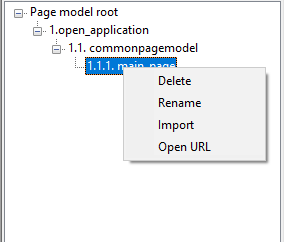
| Delete | Deletes the selected pagemodel and all the associated elements and files |
| Rename | Renames the selected pagemodel |
| Import | Imports an external pagemodel from a different project. It has to be in Python (.py) format. |
| Open URL | Opens the URL associated with the selected page model in the browser window |
4.2.2 Object view table
This table shows the object that were created for the pagemodel that is currently selected. It shows information about each of the locators, for example: name, type of locator, value, coordinates and dimensions. As can be seen below, clicking on one of them changes the focus of the webpage to the selected object.
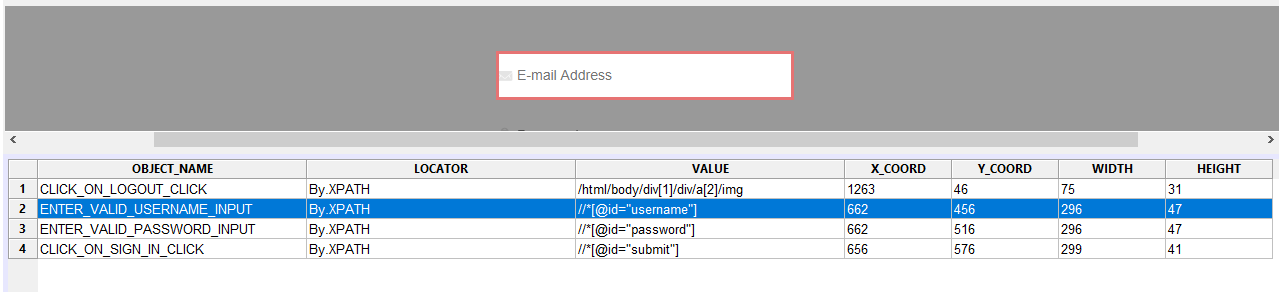
It is possible to do a series of actions to each of the objects and seen below:

| Delete | Deletes the selected object |
| Edit | Edits the selected object. It is possible to change, for example, the name or the value of the object |
It is also possible to copy certain parts of the object to the clipboard to use in different files as needed.
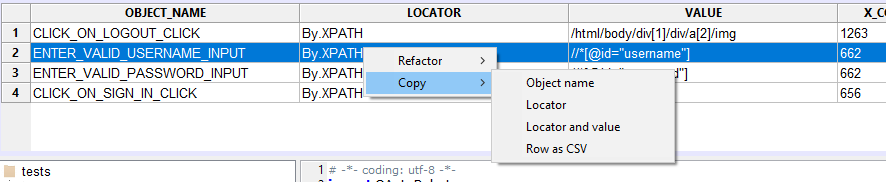
| Object name | Copies the name of the selected object to the clipboard |
| Locator | Copies the type of locator for the selected object to the clipboard |
| Locator and value | Copies the type and value of the locator for the selected object to the clipboard |
| Row as CSV | Copies all the fields for the selected object into the clipboard in CSV format |
4.2.3 Project tree view and edit window
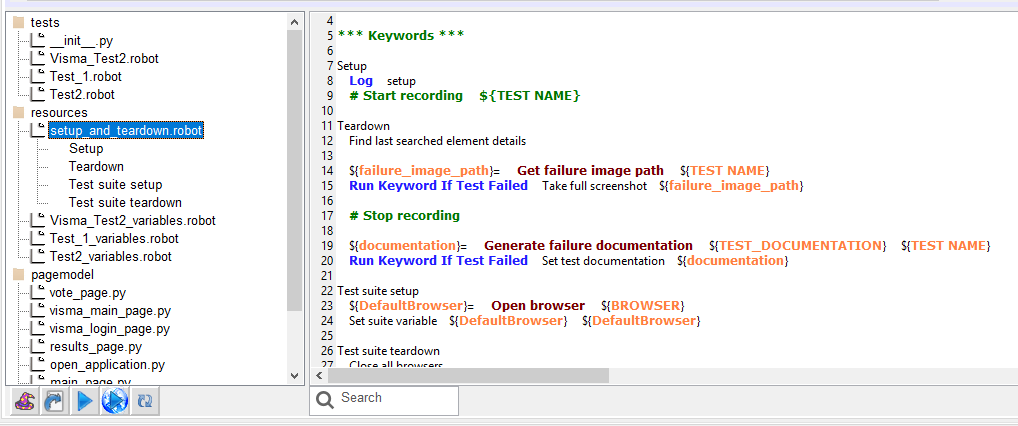
When QAutoFlow files are transformed into Robot Framework files and pagemodels, it is possible to see the folder structure that is created as well as edit the different source files that are part of the project. On the tree view window, it is also possible to delete not needed files.
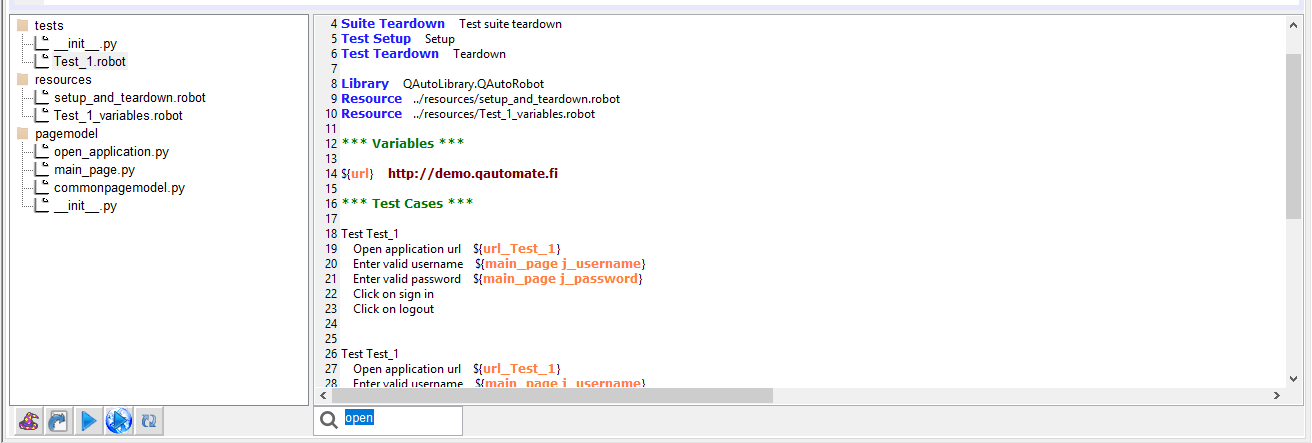
To edit a specific file, select it from the tree view and then click on the source code shown on the right side of the screen. To save, simply move the focus away from the edit window by, for example selecting a different file or object.
As can be seen above, the editing window also supports syntax highlight for known file formats, for example .robot and .py files.
4.2.3.1 Project tree structure
Below is a simple example of the project folder structure as shown in the Folder tree view in QAutoRobot
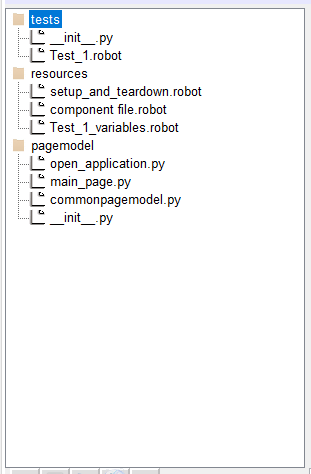
| tests | Includes all the .robot files belonging to the project. Usually created by transforming QAutoFlow .json files |
| resources | Variable files, setup and teardown file, component file are found here |
| pagemodel | The different pagemodel files are found here as Python libraries |
4.2.3.1 Project tree - Run keyword
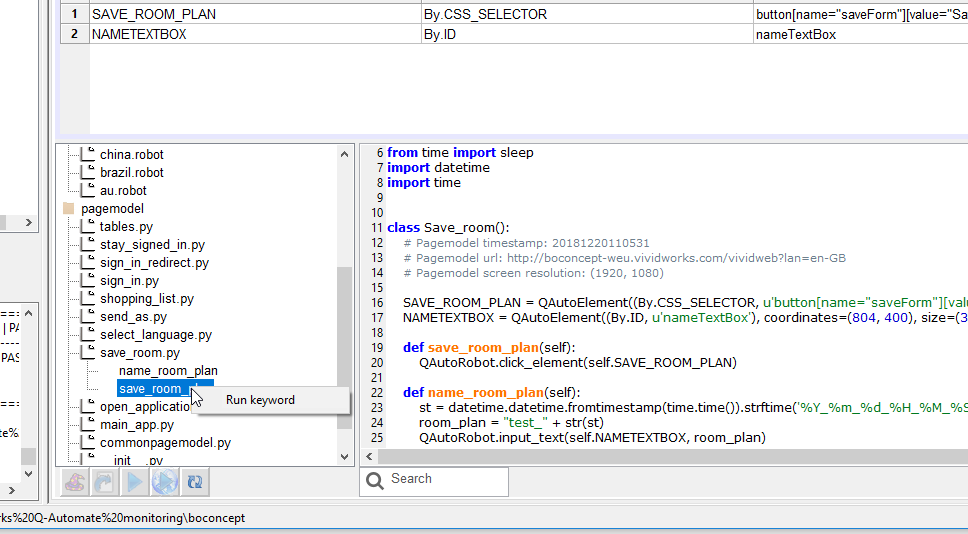
Clicking on one of the pagemodel files expands a list with the different keywords/methods defined in it. Right clicking on one of the enables running that specific keyword without the need to run the whole test case. This can be usefull while debugging a keyword or a specific part of a testcase and can save quite a bit of time.
4.2.3.1 Setup and teardown file
QAutorobot Framework has similar test setup and teardown functionality as many other test automation frameworks. In short, the test setup is something that is executed before the test case, and the test teardown is executed after the test case. In QAutorobot Framework setups and teardowns are just normal keywords with possible arguments.
The test teardown is special in two ways. First of all, it is executed also when the test case fails, so it can be used for clean-up activities that must be done regardless of the test case status. In addition, all the keywords in the teardown are also executed even if test executes successfully.
Test Setup and test Teardown is generated automatically after test case is created. The file setup_and_teardown.robot file can be found under the /Resources folder.
4.3 Application buttons
The QAutoRObot UI has a few buttons worth mentioning. Below is a list of these and also what each button does. Some of the buttons functionalities are shown in depth in the QAutoRobot Advanced Components page
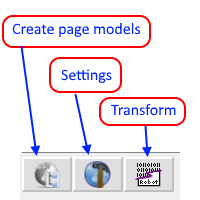
| Create page models | Create new pagemodels in the current project |
| Settings | Defines a series of settings related to the current projects web page |
| Transform | Used to transform QAutoFlow .json files into .robot files. Also automatically creates the appropriate pagemodels if they do not yet exist |
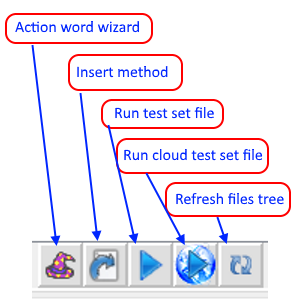
| Action word wizard | Creates new keywords that can be added to different test files |
| Insert method | Add an exisiting method into the .robot file |
| Run test set file | Run the currently selected .robot file |
| Run cloud test set file | |
| Refresh files tree | Referehes the current tree project to reflect changes |